1. መግቢያ
ስለገዙ እናመሰግናለንasing the Matbip Switch2 Controller. This advanced model is designed to enhance your gaming experience across multiple platforms, including Nintendo Switch (1st and 2nd generations), Android, iOS (16.0 and above), and Windows PC. Featuring cutting-edge technology such as Hall Sensor sticks, a 6-axis gyro sensor, and customizable functions, this controller offers precise control and immersive feedback.
Please read this manual carefully before use to ensure proper operation and to fully utilize all features.
2. የጥቅል ይዘቶች
- Matbip Switch2 Pro Controller x 1
- ዓይነት-C የኃይል መሙያ ገመድ x 1
- የተጠቃሚ መመሪያ x1
3. ምርት አብቅቷልview

ምስል 1: የፊት view of the Matbip Switch2 Controller.
ቁልፍ ባህሪዎች
- የብዝሃ-ፕላትፎርም ተኳኋኝነት፡- Supports Switch (1st & 2nd Gen), Android, iOS (16.0+), and Windows PC.
- የተረጋጋ ገመድ አልባ ግንኙነት; Utilizes Bluetooth 5.0 for zero-latency communication up to 10 meters.
- Drift-Zero Hall Sensor Sticks: Non-contact Hall sensors for both joysticks and triggers eliminate drift, offering over 5 million operations durability and ±0.5% high precision.
- Programmable Back Buttons (M1, M2): Customize complex actions with macro programming for enhanced gameplay.
- 6-አክሲስ ጋይሮ ዳሳሽ፡ High-sensitivity gyro sensor detects subtle movements for precise motion control and aiming.
- Adjustable TURBO Function: Three-speed continuous fire (5/12/20 shots/sec) for rapid actions in games.
- 4-Level HD Vibration: Adjustable vibration intensity (0%/30%/70%/100%) provides immersive tactile feedback.
- ለረጅም ጊዜ የሚቆይ ባትሪ; Built-in 1000mAh battery provides up to 20 hours of continuous play on a 4-hour charge, with low battery alerts.
- Ergonomic ንድፍ; Streamlined shape with premium faux leather material and anti-slip coating ensures comfortable grip and reduces fatigue during long gaming sessions.
4. ማዋቀር እና ግንኙነት
4.1 መቆጣጠሪያውን መሙላት
Before first use, fully charge the controller. Connect the included Type-C cable to the controller's charging port and the other end to a USB power source (e.g., Switch dock, PC, USB wall adapter). The indicator lights will show charging status. A full charge takes approximately 4 hours.

Figure 2: Battery capacity and charging details.
4.2 ከመሳሪያዎች ጋር መገናኘት
The controller supports wireless Bluetooth 5.0 connection across various platforms.
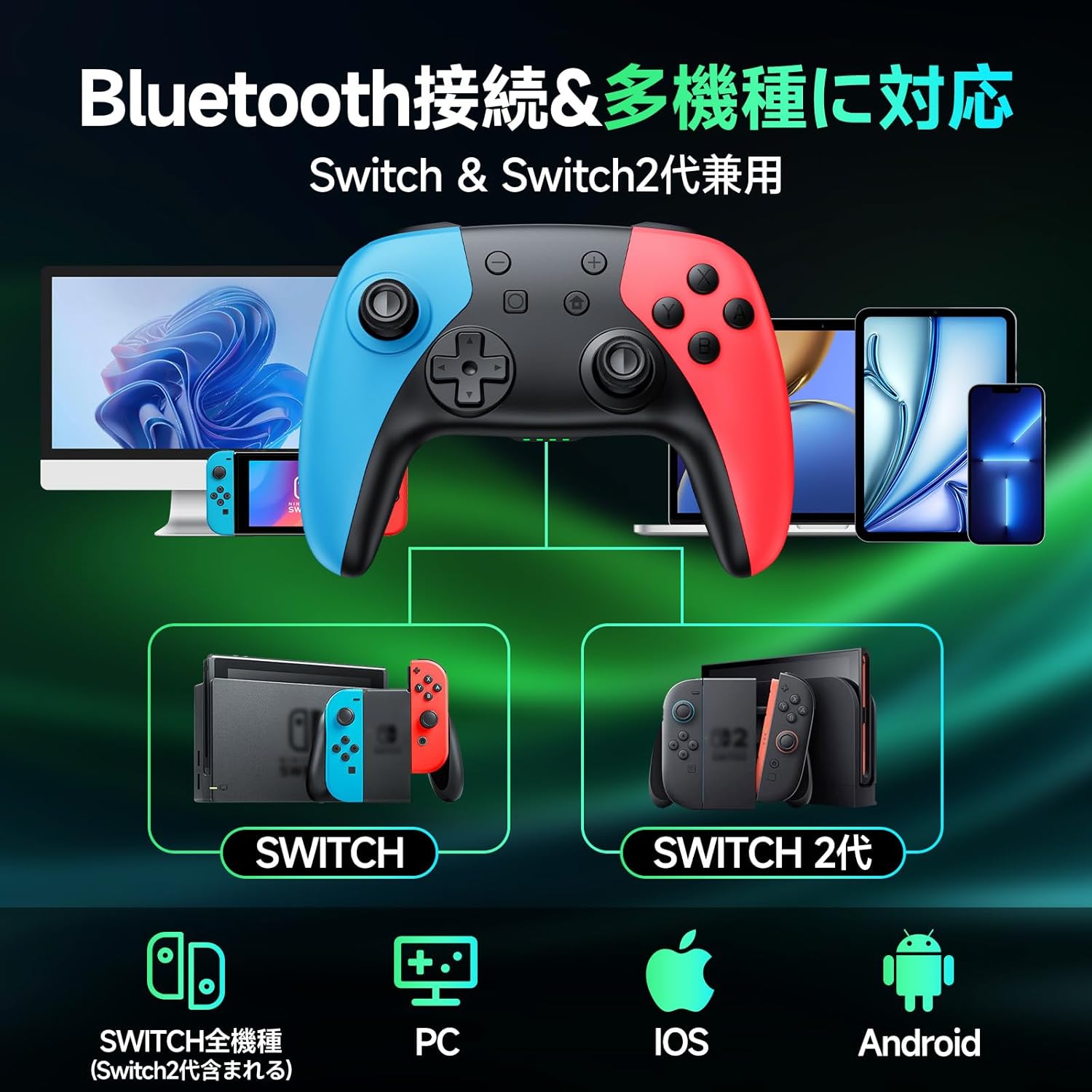
Figure 3: Multi-platform compatibility via Bluetooth.
4.2.1 Nintendo Switch / Switch 2 Connection:
- On your Switch console, go to the HOME Menu.
- "ተቆጣጣሪዎች" > "የመያዝ/የትእዛዝ ለውጥ" የሚለውን ይምረጡ።
- Press and hold the HOME button on the Matbip controller for 3 seconds until the indicator lights flash rapidly.
- The controller will automatically pair with the Switch. Once connected, the corresponding player indicator light(s) will remain solid.
4.2.2 Android / iOS / PC Connection:
- Ensure Bluetooth is enabled on your Android/iOS device or PC.
- Press and hold the HOME button on the Matbip controller for 3 seconds to enter pairing mode.
- On your device, search for Bluetooth devices and select "Matbip Controller" (or similar name) from the list.
- አንዴ ከተገናኘ በኋላ በመቆጣጠሪያው ላይ ያሉት የአመላካች መብራቶች ጠንካራ ይሆናሉ።
5. የአሠራር መመሪያዎች
5.1 Hall Sensor Sticks and Triggers
The controller features advanced Hall Sensor technology for both joysticks and triggers, providing superior precision and durability compared to traditional analog sticks. This design prevents stick drift and ensures accurate input with a response speed of just 5ms.

Figure 4: Hall Sensor technology for precise, drift-free control.
5.2 የማክሮ ተግባር (M1/M2 አዝራሮች)
The M1 and M2 buttons on the back of the controller can be programmed to execute a sequence of button presses (macro). This is useful for repetitive actions or complex combos.

Figure 5: Location of programmable M1 and M2 buttons.
የፕሮግራም ደረጃዎች፡-
- Press and hold the M button (located between M1 and M2) and the M1 or M2 button you wish to program simultaneously. The indicator lights will flash slowly.
- Press the sequence of buttons you want to record (e.g., A, B, X, Y, L, R, D-pad directions, etc.).
- Press the M button again to save the macro. The indicator lights will stop flashing.
- አሁን፣ የፕሮግራም የተደረገለትን M1 ወይም M2 አዝራር መጫን የተቀዳውን ቅደም ተከተል ያስፈጽማል።
ማክሮን ማጽዳት;
To clear a macro, press and hold the M button and the M1 or M2 button simultaneously, then press the M button again without recording any sequence.
5.3 TURBO ተግባር
The TURBO function allows for continuous rapid firing of a button. There are three adjustable speeds: 5, 12, and 20 shots per second.

Figure 6: TURBO function for automatic rapid fire.
Activating TURBO:
- Press and hold the TURBO button (T button).
- While holding TURBO, press the button you want to set for continuous fire (e.g., A, B, X, Y, L, R, ZL, ZR). The button will now continuously fire when held down.
Adjusting TURBO Speed:
- While holding the TURBO button, move the Right Analog Stick Up or Down to cycle through the three speeds (5/12/20 shots/sec).
Deactivating TURBO:
To deactivate TURBO for a specific button, repeat the activation steps. To deactivate TURBO for all buttons, press and hold the TURBO button for 5 seconds.
5.4 የንዝረት ማስተካከያ
The controller features 4 levels of HD vibration intensity: 0% (None), 30% (Weak), 70% (Normal), and 100% (Strong).

Figure 7: Four-stage vibration adjustment.
የንዝረት ጥንካሬን ማስተካከል;
- While holding the TURBO button, move the Left Analog Stick Up or Down to cycle through the vibration levels.
5.5 Gyro Sensor Calibration
If you experience issues with motion control or aiming, you may need to calibrate the 6-axis gyro sensor.

Figure 8: 6-axis gyro sensor for directional, viewpoint, and target recognition.
የመለኪያ ደረጃዎች
- Place the controller on a flat, level surface.
- Simultaneously press and hold the X button, Square button, and HOME button until the indicator lights flash, then release.
- The controller will calibrate itself. Once calibration is complete, the indicator lights will stop flashing and return to their normal state.
6. ጥገና
- መቆጣጠሪያውን ለስላሳና ደረቅ ጨርቅ በማጽዳት ንፁህ ያድርጉት። ጠጣር ኬሚካሎችን ወይም ሻካራ ቁሳቁሶችን ከመጠቀም ይቆጠቡ።
- መቆጣጠሪያውን ለከፍተኛ ሙቀት፣ እርጥበት ወይም ቀጥተኛ የፀሐይ ብርሃን አያጋልጡት።
- መቆጣጠሪያውን ከመጣል ወይም ለጠንካራ ተጽእኖዎች ከማድረግ ተቆጠብ።
- Press buttons gently. Excessive force is not required and may cause damage over time.
- በማይጠቀሙበት ጊዜ መቆጣጠሪያውን በቀዝቃዛና ደረቅ ቦታ ያከማቹ.
7. መላ መፈለግ
| ችግር | ሊሆን የሚችል ምክንያት | መፍትሄ |
|---|---|---|
| መቆጣጠሪያው አይበራም። | ዝቅተኛ ባትሪ. | መቆጣጠሪያውን ሙሉ በሙሉ ይሙሉት። |
| በብሉቱዝ መገናኘት አልተቻለም። | Controller not in pairing mode; Bluetooth interference; device Bluetooth off. | Ensure controller is in pairing mode (hold HOME button); restart controller and device; check device Bluetooth settings. |
| Stick drift or inaccurate motion control. | Gyro sensor needs calibration. | Perform gyro calibration as described in Section 5.5. |
| TURBO/Vibration not working. | Function not activated or incorrectly set. | Refer to Sections 5.3 and 5.4 for proper activation and adjustment. |
| አዝራሮች ምላሽ የማይሰጡ። | ዝቅተኛ ባትሪ፤ የሶፍትዌር ችግር። | Charge controller; try resetting the controller (if applicable, usually by holding a small reset button or specific button combo). |
ከላይ የተጠቀሱትን መፍትሄዎች ከሞከሩ በኋላ ችግሩ ከቀጠለ፣ እባክዎ የደንበኞች ድጋፍን ያነጋግሩ።
8. ዝርዝሮች
- የምርት ስም፡ ማትቢፕ
- የሞዴል ቁጥር፡- AB1
- ቀለም፡ ባለብዙ ቀለም
- ግንኙነት፡ ሽቦ አልባ ብሉቱዝ 5.0
- የባትሪ አቅም፡- 1000mAh
- የኃይል መሙያ ጊዜ: በግምት. 4 ሰዓታት
- ቀጣይነት ያለው የጨዋታ ጊዜ፦ እስከ 20 ሰዓታት ድረስ
- መጠኖች፡- 17.2 x 11.7 x 7.3 ሴ.ሜ
- ክብደት፡ 310 ግ
- የአዝራሮች ብዛት፡- 16
- ልዩ ባህሪያት፡ 6-axis Gyro Sensor, Macro Function, TURBO Continuous Fire, 4-stage HD Vibration, Hall Sensor Sticks
- የሚደገፉ መድረኮች፡ Nintendo Switch (all generations), Android, iOS, PC
9. ዋስትና እና ድጋፍ
This product comes with a 1-year quality warranty from the date of purchase. All products undergo strict quality inspection before shipment and have obtained international certifications including TELEC, CE, FCC, and RoHS.
For any questions, concerns, or technical support, please do not hesitate to contact our customer service. We are committed to providing you with the best possible gaming experience.
When operating buttons, please press gently to ensure longevity of the product.


