1. ጠቃሚ የደህንነት መረጃ
Please read all safety instructions before using the projector. Keep this manual for future reference.
- የአየር ማናፈሻ ክፍተቶችን አያግዱ. ለትክክለኛው የአየር ፍሰት በፕሮጀክተሩ ዙሪያ በቂ ቦታ መኖሩን ያረጋግጡ.
- Avoid direct exposure to the projector lens light.
- ፕሮጀክተሩን በሙቀት ምንጮች አጠገብ ወይም በቀጥታ የፀሐይ ብርሃን ላይ አያስቀምጡ.
- ከመሳሪያው ጋር የቀረበውን የኃይል አስማሚ ብቻ ይጠቀሙ.
- ፕሮጀክተሩን እራስዎ ለመክፈት ወይም ለመጠገን አይሞክሩ። ሁሉንም የአገልግሎት አገልግሎቶች ብቁ ለሆኑ ባለሙያዎች ያመልክቱ።
- ፕሮጀክተሩን ከውሃ ወይም ከሌሎች ፈሳሾች ያርቁ።
2. የጥቅል ይዘቶች
ሁሉም እቃዎች በጥቅሉ ውስጥ መኖራቸውን ያረጋግጡ፡-
- Aurzen Roku TV Smart Projector (D1R Cube)
- የኃይል ገመድ
- Remote Control (2 AAA Batteries Required, not included)
- የተጠቃሚ መመሪያ (ይህ ሰነድ)
3. ምርት አብቅቷልview
The Aurzen D1R Cube is a compact smart projector featuring built-in Roku TV for integrated streaming. It offers 1080P Full HD resolution, Dolby Audio, and a sealed optical engine for enhanced durability and clarity.
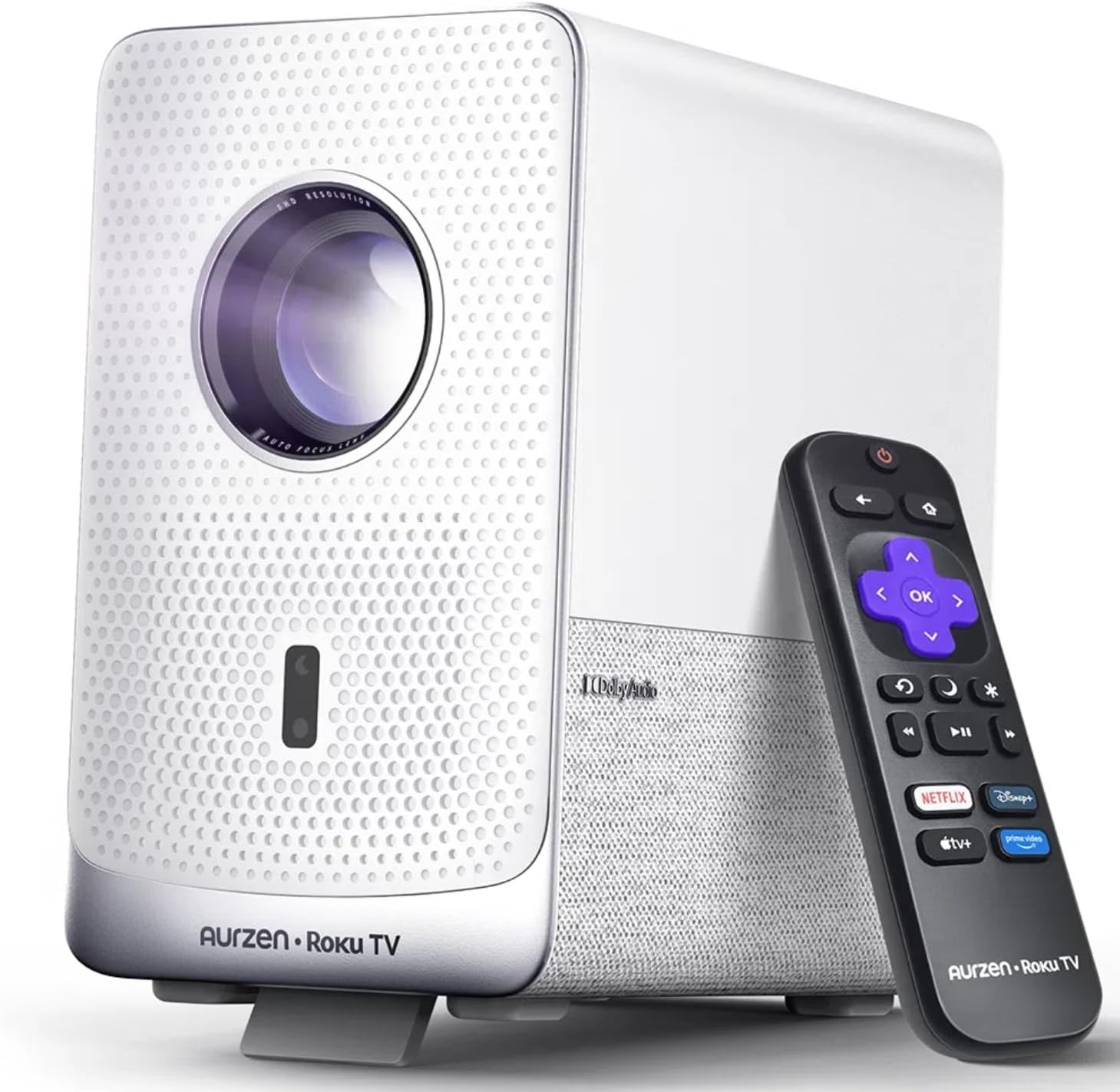
Image: The Aurzen D1R Cube Smart Projector shown with its remote control. The projector is white with a textured front panel and a visible lens.
ቁልፍ ባህሪዎች
- Roku TV Built-in: ታዋቂ የዥረት አገልግሎቶችን በቀጥታ ያግኙ።
- የታሸገ የኦፕቲካል ሞተር፡ Protects against dust, maintaining image quality and extending lifespan.
- 1080P FHD Resolution: Delivers crisp and clear visuals.
- ዶልቢ ኦዲዮ፡ Provides enhanced sound experience.
- የራስ-ሰር ትኩረት እና የኪስቶን እርማት፡ Automatic image adjustment for quick setup.
- Dual-band WiFi & Bluetooth 5.2: For seamless connectivity.
- አፕል ኤርፕሌይ፡ Effortless content sharing from Apple devices.
- የስማርት ቤት ተኳኋኝነት Works with Apple HomeKit, Siri, Alexa, and Google Assistant.

Image: An internal diagram illustrating the sealed optical engine of the Aurzen D1R Cube projector, highlighting its dust-proof design.
4. ማዋቀር
4.1 የመጀመሪያ አቀማመጥ
ፕሮጀክተሩን በተረጋጋ ጠፍጣፋ መሬት ላይ ያድርጉት። ለተመቻቸ viewing, position it directly in front of your projection surface (wall or screen). The projector features automatic focus and keystone correction to adjust the image, but a relatively straight angle is recommended.

Image: A visual representation of the projector's auto-focus and auto-keystone correction features, showing how the image automatically adjusts to create a perfect rectangular display.
4.2 የኃይል ግንኙነት
- የኃይል ገመዱን ከፕሮጀክተሩ የኃይል ግብዓት ወደብ ጋር ያገናኙ።
- የኃይል ገመዱን ሌላኛውን ጫፍ ወደ ተስማሚ የኤሌክትሪክ ሶኬት ይሰኩት.
- The projector will power on automatically or can be turned on using the power button on the device or remote.
4.3 የርቀት መቆጣጠሪያ ቅንብር
Insert two AAA batteries (not included) into the remote control. Ensure correct polarity. The remote is pre-paired with the projector.
4.4 Initial Roku TV Setup
Upon first power-on, follow the on-screen instructions to set up your Roku TV. This includes:
- ቋንቋዎን መምረጥ።
- Connecting to a Wi-Fi network (a stable internet connection is required).
- Activating your Roku account. If you do not have one, you will be prompted to create a free account.
- Installing desired streaming channels.
5. የአሠራር መመሪያዎች
5.1 ማብራት / ማጥፋት
መሳሪያውን ለማብራት ወይም ለማጥፋት በፕሮጀክተሩ ወይም በርቀት መቆጣጠሪያው ላይ ያለውን የኃይል ቁልፍ ይጫኑ።
5.2 የሮኩ መነሻ ማያ ገጽ አሰሳ
Use the directional pad and OK button on the remote to navigate the Roku home screen. Access streaming channels, search for content, and adjust settings.

Image: A screenshot of the Roku TV home screen, displaying various streaming app icons and navigation options.
5.3 የዥረት አፕሊኬሽኖች
The Roku TV platform provides access to a wide range of streaming applications such as Netflix, Prime Video, Disney+, Hulu, YouTube, and more. Select an app from the home screen to begin streaming.

ምስል፡ የግራፊክ ትርኢትasing various popular streaming service logos available on the Roku TV platform, including Netflix, Disney+, and Hulu.
5.4 የውጭ መሳሪያዎችን ማገናኘት
The projector includes HDMI and USB ports for connecting external devices.
- ኤችዲኤምአይ: Connect gaming consoles, Blu-ray players, or other HDMI-enabled devices. Select the corresponding HDMI input from the Roku TV menu.
- ዩኤስቢ፡ ሚዲያ አጫውት fileከዩኤስቢ ማከማቻ መሣሪያ (ፎቶዎች፣ ቪዲዮዎች፣ ሙዚቃ)።
5.5 የብሉቱዝ ግንኙነት
Connect Bluetooth headphones or speakers for an enhanced audio experience.
- Go to the Roku TV settings menu.
- Select 'Remotes & devices' then 'Bluetooth devices'.
- የብሉቱዝ መሣሪያዎን ወደ ተጣማጅ ሁኔታ ያስገቡ።
- Select your device from the list on the projector screen to pair.

Image: A diagram illustrating the Bluetooth connectivity of the Aurzen D1R Cube projector, showing it connecting to various external audio devices.
5.6 አፕል አየር ማቀፊያ
Effortlessly share content from your Apple devices (iPhone, iPad, Mac) to the projector using Apple AirPlay.
- Ensure your Apple device and the projector are connected to the same Wi-Fi network.
- On your Apple device, open the content you wish to share (e.g., photos, videos).
- የ AirPlay አዶውን ይንኩ። (usually a rectangle with an upward-pointing arrow).
- Select your Aurzen D1R Cube projector from the list of available devices.

Image: A family watching content projected from an Apple device onto a large screen via Apple AirPlay using the Aurzen D1R Cube projector.
5.7 የድምጽ ቁጥጥር እና ስማርት ሆም ውህደት
The projector supports voice control via the Roku mobile app and is compatible with Apple HomeKit, Siri, Alexa, and Google Assistant for broader smart home integration.
- የሮኩ የሞባይል መተግበሪያ፦ Download the Roku mobile app to use voice commands, type easily, and control your projector from your smartphone.
- Smart Home Assistants: Link your Roku account to your preferred smart home ecosystem (Apple Home, Amazon Alexa, Google Home) to control the projector with voice commands.
6. ጥገና
6.1 Sealed Optical Engine
The Aurzen D1R Cube features a sealed optical engine designed to prevent dust accumulation on internal components. This reduces the need for routine internal cleaning and helps maintain consistent image quality over time.

Image: A side-by-side comparison showing the difference in dust accumulation between a sealed optical engine (left) and an open optical engine (right) after a period of use.
6.2 አጠቃላይ ጽዳት
- ውጫዊ፡ የፕሮጀክተሩን ውጫዊ ክፍል ለስላሳና ደረቅ ጨርቅ ይጥረጉ። ሻካራ ማጽጃዎችን ወይም ሟሟቶችን አይጠቀሙ።
- መነፅር Gently clean the projector lens with a lens cleaning cloth or specialized lens cleaning solution. Avoid touching the lens with your fingers.
- የአየር ማናፈሻ; Ensure ventilation openings are clear of dust and debris. Use a soft brush or compressed air to gently clean them if necessary.
6.3 ማከማቻ
When not in use for extended periods, store the projector in a cool, dry place, away from direct sunlight and extreme temperatures. Consider using a protective cover or case to prevent dust accumulation.
7. መላ መፈለግ
If you encounter issues with your Aurzen D1R Cube projector, refer to the following common solutions:
| ችግር | ሊሆን የሚችል መፍትሄ |
|---|---|
| ኃይል የለም | Ensure the power cord is securely connected to both the projector and the electrical outlet. Test the outlet with another device. |
| ስዕል የለም | Check if the projector is powered on. Verify the input source (HDMI, USB) is correctly selected. Ensure the lens cap is removed. |
| የደበዘዘ ምስል | The projector has auto-focus. If the image remains blurry, try repositioning the projector or restarting it to trigger auto-focus again. Ensure the lens is clean. |
| ድምጽ የለም | Check the volume level on the projector and any connected external audio devices. Ensure Bluetooth audio is correctly paired or external speakers are properly connected. |
| የWi-Fi ግንኙነት ጉዳዮች | Ensure your Wi-Fi router is working. Restart the projector and your router. Verify the Wi-Fi password is correct in the Roku TV settings. |
| የርቀት ምላሽ የማይሰጥ | Replace the AAA batteries in the remote control. Ensure there are no obstructions between the remote and the projector. |
For further assistance, please refer to the online support resources or contact Aurzen customer service.
8. ዝርዝሮች
Detailed technical specifications for the Aurzen D1R Cube Smart Projector:
| ባህሪ | ዝርዝር መግለጫ |
|---|---|
| የምርት ስም | Aurzen |
| ሞዴል | D1R Cube |
| የማሳያ ጥራት ከፍተኛ | 1920 x 1080 (1080P FHD) |
| የግንኙነት ቴክኖሎጂ | WiFi (Dual-band 2.4G/5G), Bluetooth 5.2, HDMI, USB, Audio |
| ልዩ ባህሪያት | Roku TV Smart Projector, Sealed Optical Engine, Dolby Audio, Apple AirPlay, Smart Home Compatibility |
| የእቃው ክብደት | 5.68 ፓውንድ |
| የምርት ልኬቶች | 7.42 x 7 x 7.83 ኢንች |
| ቀለም | ነጭ |
9. ዋስትና እና ድጋፍ
9.1 የምርት ዋስትና
Aurzen products are covered by a manufacturer's warranty. Please refer to the warranty card included with your product or visit the official Aurzen webጣቢያ ለተወሰኑ የዋስትና ውሎች እና ሁኔታዎች።
9.2 የደንበኛ ድጋፍ
For technical support, troubleshooting assistance, or warranty claims, please contact Aurzen customer service through their official channels. You can find more information and contact options on the Aurzen Brand Store on Amazon.


