መግቢያ
The Mercusys MA72XH is a high-performance Wi-Fi 6 AX1800 USB adapter designed to provide fast and stable wireless connectivity for your desktop or laptop computer. Featuring dual-band support, USB 3.0 interface, and advanced security protocols like WPA3, this adapter enhances your online experience for streaming, gaming, and video calls. This manual provides detailed instructions for the proper installation, operation, and maintenance of your MA72XH adapter.
የጥቅል ይዘቶች
ጥቅልዎ የሚከተሉትን ንጥሎች መያዙን ያረጋግጡ፡-
- 1 x Mercusys MA72XH AX1800 High-Performance Dual-Band Wireless USB Adapter
- 1 x ፈጣን የመጫኛ መመሪያ
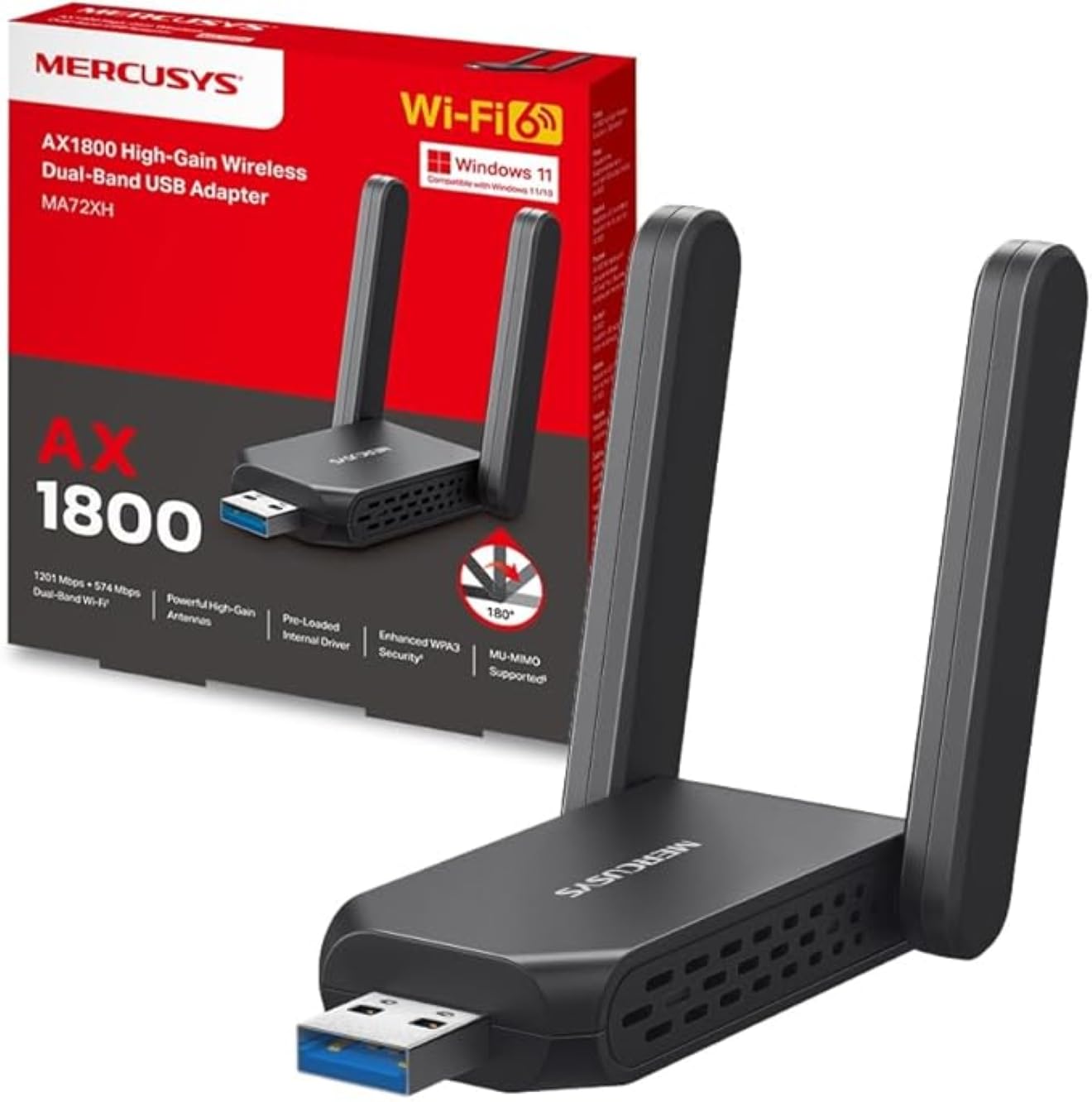
Image: The Mercusys MA72XH WiFi 6 AX1800 USB Adapter, showcasing its compact design and two adjustable external antennas.
የምርት ባህሪያት
- High-Speed Dual-Band Wi-Fi: Achieves speeds up to 1201 Mbps on the 5 GHz band and 574 Mbps on the 2.4 GHz band, supported by two high-performance antennas.
- Preloaded Internal Driver: Offers simple plug-and-play installation for most Windows 10/11 systems, eliminating the need for manual driver downloads in many cases.
- MU-MIMO ቴክኖሎጂ፡- Enables the adapter to communicate with multiple devices simultaneously, reducing latency and improving overall network efficiency.
- Enhanced WPA3 Security: Utilizes the latest Wi-Fi security standard to provide robust protection for your network and personal data against unauthorized access.
- ዩኤስቢ 3.0 በይነገጽ; Ensures superior data transfer speeds, optimizing performance for high-definition streaming, online gaming, and large file transfers when paired with Wi-Fi 802.11ax.
- ሰፊ ተኳኋኝነት Fully compatible with Windows 10 and Windows 11 operating systems.
የማዋቀር መመሪያ
Follow these steps to install your Mercusys MA72XH WiFi adapter:
- አስማሚውን ያስገቡ፡- Plug the MA72XH adapter into an available USB 3.0 port on your desktop or laptop computer. For optimal performance, use a USB 3.0 port (often blue inside).
- የአሽከርካሪ ጭነት;
- ራስ-ሰር መጫን; In most cases, Windows 10 or 11 will automatically detect the adapter and install the necessary drivers from its preloaded internal memory. Wait for a notification indicating successful driver installation.
- በእጅ መጫኛ (አስፈላጊ ከሆነ): If the driver does not install automatically, or if you encounter issues, you may need to download the latest drivers from the official Mercusys support website. Insert the adapter, then navigate to the Mercusys support page for the MA72XH model, download the driver, and follow the on-screen instructions for installation.
- አንቴናዎችን አስተካክል; Position the two external antennas for optimal signal reception. Generally, pointing them upwards or slightly angled can improve performance.
- ከWi-Fi አውታረ መረብ ጋር ይገናኙ፡
- Once the driver is installed, click the Wi-Fi icon in your computer's system tray (usually in the bottom-right corner).
- ከሚገኙት አውታረ መረቦች ዝርዝር ውስጥ የሚፈልጉትን የ Wi-Fi አውታረ መረብ ይምረጡ።
- Enter the network security key (password) if prompted, then click "Connect".
Your Mercusys MA72XH adapter should now be connected to your wireless network.
የአሠራር መመሪያዎች
The Mercusys MA72XH operates as a standard Wi-Fi adapter once installed.
- Connecting/Disconnecting: Manage your Wi-Fi connections through the standard Windows network settings. Click the Wi-Fi icon in the system tray to view available networks, connect to a new one, or disconnect from an existing one.
- ባለሁለት ባንድ አሠራር፡- The adapter automatically selects the optimal band (2.4 GHz or 5 GHz) based on network conditions and router capabilities. If your router broadcasts separate SSIDs for each band, you can manually choose to connect to the 5 GHz network for higher speeds or the 2.4 GHz network for better range.
- MU-MIMO Benefits: When connected to a MU-MIMO compatible router, the MA72XH can process data streams to and from multiple devices simultaneously, leading to more efficient network usage and reduced buffering, especially in busy network environments.
ጥገና
To ensure the longevity and optimal performance of your MA72XH adapter:
- የአሽከርካሪ ማሻሻያ የሜርኩሲስን ባለስልጣን በየጊዜው ያረጋግጡ website for the latest driver updates. Keeping your drivers current can improve performance, stability, and security.
- የአካል እንክብካቤ; Keep the adapter clean and free from dust. Avoid exposing it to extreme temperatures, humidity, or direct sunlight. Do not attempt to disassemble the device.
- የአንቴና አቀማመጥ; Ensure the antennas are not obstructed and are positioned for the best possible signal reception. Avoid placing the adapter near large metal objects or other electronic devices that may cause interference.
- ደህንነቱ የተጠበቀ ግንኙነት; Always ensure the adapter is firmly seated in the USB port to prevent intermittent connections.
መላ መፈለግ
If you encounter issues with your Mercusys MA72XH adapter, refer to the following common solutions:
- ምንም የWi-Fi ግንኙነት የለም፡
- አስማሚው ደህንነቱ በተጠበቀ ሁኔታ በሚሰራ የዩኤስቢ ወደብ ላይ መሰካቱን ያረጋግጡ። የተለየ የዩኤስቢ ወደብ ይሞክሩ።
- Verify that Wi-Fi is enabled in your computer's settings.
- Check if the adapter's driver is correctly installed in Device Manager (Windows Key + X > Device Manager > Network adapters). If there's a yellow exclamation mark, reinstall the driver.
- Restart your computer and your Wi-Fi router.
- ቀርፋፋ የWi-Fi ፍጥነት፡
- Ensure you are connected to the 5 GHz band if available and your router supports it, as it generally offers higher speeds.
- Move closer to your Wi-Fi router or adjust the adapter's antennas for better signal strength.
- ከሌሎች የኤሌክትሮኒካዊ መሳሪያዎች (ለምሳሌ ማይክሮዌቭ, ገመድ አልባ ስልኮች) ጣልቃገብነት ያረጋግጡ.
- የእርስዎን አስማሚ ሾፌሮች ወደ የቅርብ ጊዜው ስሪት ያዘምኑ።
- ተደጋጋሚ ግንኙነቶች;
- Ensure the adapter is not loose in the USB port.
- Disable any power-saving features for the USB port in Device Manager (right-click the adapter > Properties > Power Management tab, uncheck "Allow the computer to turn off this device to save power").
- የራውተርዎን firmware ያዘምኑ።
- Try connecting to a different Wi-Fi channel on your router to avoid congestion.
- የአሽከርካሪ ጭነት አለመሳካት፡
- ነጂ በሚጫንበት ጊዜ የጸረ-ቫይረስ ሶፍትዌርን ለጊዜው ያሰናክሉ።
- Download the driver directly from the Mercusys official website and run the installer as an administrator.
- የዊንዶውስ ኦፐሬቲንግ ሲስተምዎ የተዘመነ መሆኑን ያረጋግጡ።
ዝርዝሮች
| የምርት ስም | ምህረት |
| የሞዴል ቁጥር | MA72XH |
| ሽቦ አልባ መደበኛ | IEEE 802.11ax (Wi-Fi 6) |
| የውሂብ ማስተላለፍ ፍጥነት | እስከ 1800 ሜቢበሰ (1201 ሜጋ ባይት በ5 GHz፣ 574 ሜጋ ባይት በ2.4 ጊኸ) |
| ድግግሞሽ | ባለሁለት ባንድ (2.4 GHz እና 5 GHz) |
| በይነገጽ | ዩኤስቢ 3.0 |
| ደህንነት | WPA3፣ WPA2፣ WPA |
| ተኳኋኝነት | Windows 10, Windows 11 |
| አንቴናዎች | 2 ከፍተኛ አፈፃፀም ውጫዊ አንቴናዎች |
| ልኬቶች (L x W x H) | 11.3 x 10.1 x 2.7 ሴ.ሜ |
| ክብደት | 50 ግ |
ዋስትና እና ድጋፍ
የዋስትና መረጃ እና የቴክኒክ ድጋፍ ለማግኘት፣ እባክዎን ኦፊሴላዊውን ሜርኩሲስን ይመልከቱ። website or the documentation included with your product. You can typically find support resources, FAQs, and contact information by visiting www.mercusys.com/support and searching for your model (MA72XH).


