1. መግቢያ
This user manual provides detailed instructions for the Bemi Cognita Tab 6+ E-Reader. Please read this manual carefully before using your device to ensure proper operation and to maximize your reading experience. Keep this manual for future reference.
1.1 የጥቅል ይዘቶች
- Bemi Cognita Tab 6+ E-Reader
- የዩኤስቢ ባትሪ መሙያ ገመድ
ከሳጥኑ ሲወጡ ሁሉም እቃዎች መኖራቸውን እና በጥሩ ሁኔታ ላይ መሆናቸውን ያረጋግጡ።
2. መሣሪያ አብቅቷልview
Familiarize yourself with the physical components of your Bemi Cognita Tab 6+ E-Reader.

ምስል 2.1፡ ፊት ለፊት view of the Bemi Cognita Tab 6+ E-Reader. The device features a 6-inch E-Ink display with the Bemi logo and model name visible. The screen is designed to mimic paper for a comfortable reading experience.

ምስል 2.2፡ ከፊት እና ከኋላ view of the Bemi Cognita Tab 6+ E-Reader. This image highlights the device's thin design and the textured back cover, which provides a secure grip.

ምስል 2.3፡ ጎን view of the Bemi Cognita Tab 6+ E-Reader, illustrating the location of the power button and a small LED indicator. This button is used for turning the device on/off and waking it from sleep.
2.1 ቁልፍ ክፍሎች፡
- 6-inch E-Ink Touchscreen: Glare-free display for comfortable reading.
- የኃይል ቁልፍ፡- Located on the side for turning the device on/off and sleep/wake.
- ዩኤስቢ-ሲ ወደብ ለክፍያ እና የውሂብ ማስተላለፍ.
- የማይክሮ ኤስዲ ካርድ ማስገቢያ; Expandable storage up to 256GB.
- Side Control Buttons: For page turning and navigation.
- SMARTlight: Adjustable front light for reading in various conditions.
3. ማዋቀር
3.1 የመጀመሪያ ደረጃ መሙላት
Before first use, fully charge your Bemi Cognita Tab 6+ E-Reader. Connect the provided USB cable to the device's USB-C port and the other end to a compatible USB power adapter (not included) or a computer's USB port.
- ሙሉ ክፍያ በተለምዶ ከ2-3 ሰአታት ይወስዳል።
- የኃይል መሙያ አመልካች መብራቱ የኃይል መሙያ ሁኔታን ያሳያል።
3.2 ማብራት / ማጥፋት
- ለማብራት፡- Press and hold the Power button (refer to Figure 2.3) for a few seconds until the screen activates.
- ለማጥፋት፡- Press and hold the Power button until a power-off menu appears, then select "Power Off".
- ለመተኛት/መነቃቃት፡- Briefly press the Power button to put the device into sleep mode or wake it up.
3.3 የ Wi-Fi ግንኙነት
Connecting to Wi-Fi allows you to download books, transfer files, and access online services.
- ከመነሻ ማያ ገጹ ላይ፣ መታ ያድርጉ ቅንብሮች አዶ.
- ይምረጡ ዋይ ፋይ.
- የWi-Fi መቀየሪያውን ወደ ይቀይሩት On.
- The device will scan for available networks. Select your desired network from the list.
- ከተጠየቁ የይለፍ ቃሉን ያስገቡ እና ከዚያ ይንኩ። ተገናኝ.
3.4 የመጀመሪያ ውቅር
Upon first power-on, you may be guided through initial setup steps, including language selection and time zone settings. Follow the on-screen prompts.
4. የአሠራር መመሪያዎች
4.1 በይነገጹን ማሰስ
The Bemi Cognita Tab 6+ features a touch-sensitive E-Ink screen and physical side buttons for navigation.
- የንክኪ ምልክቶች፡- Tap to select, swipe to scroll, pinch to zoom (where supported).
- የጎን ቁልፎች; Use the physical buttons on the side to turn pages forward or backward during reading.
- ጂ-ዳሳሽ፡- The device automatically rotates the screen orientation based on how you hold it, accommodating both right and left-handed users.
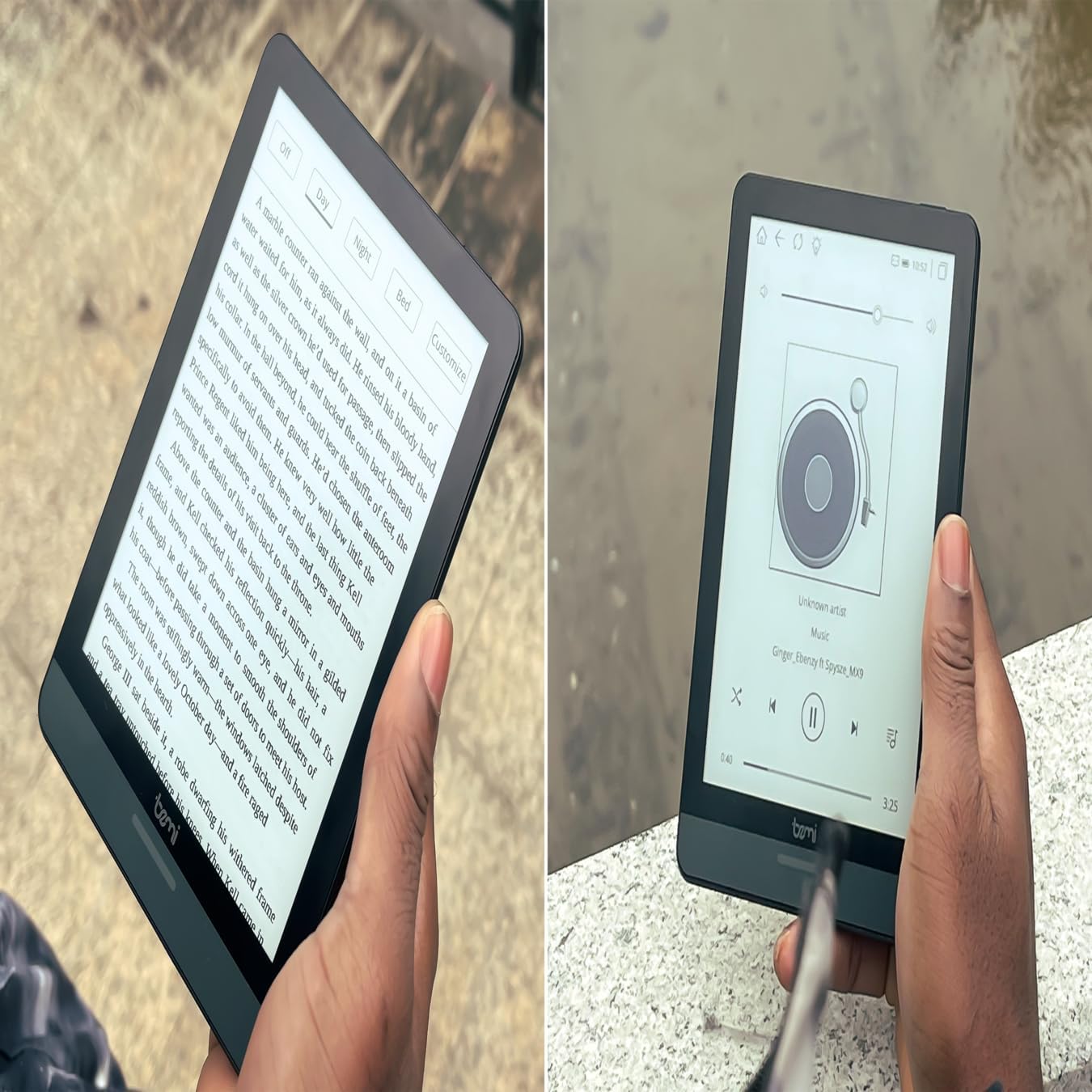
ምስል 4.1፡ User holding the Bemi Cognita Tab 6+ E-Reader while reading. The image shows the clear text display on the E-Ink screen, highlighting the device's readability.
4.2 መጽሐፍትን ማንበብ
To open and read a book:
- From the home screen, tap on the ቤተ መፃህፍት or መጽሐፍት። አዶ.
- Browse your collection or use the search function to find a book.
- Tap on the book cover to open it.
- Use the touch screen or side buttons to turn pages.
4.3 Adjusting SMARTlight
The SMARTlight feature allows you to adjust both the brightness and color temperature of the screen's front light.
- During reading, tap the center of the screen to bring up the reading menu.
- የሚለውን ይፈልጉ ብርሃን or SMARTlight አዶ.
- Adjust the sliders for brightness (intensity) and color temperature (warm to cool) to your preference.
4.4 በማስተላለፍ ላይ Files
You can transfer e-books and other supported files to your device via Wi-Fi or USB cable.
- በWi-Fi በኩል፡ If your device supports cloud services or direct Wi-Fi transfer, follow the specific application instructions.
- በዩኤስቢ ገመድ በኩል፡-
- Connect your E-Reader to a computer using the provided USB cable.
- መሣሪያው በኮምፒውተርዎ ላይ እንደ ተነቃይ የማከማቻ ድራይቭ ሆኖ ይታያል።
- የሚፈልጉትን ይጎትቱ እና ይጣሉት files (e.g., EPUB, PDF, MOBI) into the appropriate folders on the E-Reader (e.g., "Books" folder).
- ገመዱን ከማላቀቅዎ በፊት መሳሪያውን ከኮምፒዩተርዎ ደህንነቱ በተጠበቀ ሁኔታ ያውጡት።
4.5 የማይክሮ ኤስዲ ካርድ በመጠቀም
To expand storage, insert a microSD card (up to 256GB) into the designated slot.
- Gently insert the microSD card with the gold contacts facing down until it clicks into place.
- ለማስወገድ፣ ካርዱን እስኪወጣ ድረስ ቀስ ብለው ወደ ውስጥ ይግፉት።
- Files on the microSD card will be accessible through the device's file manager or library.
5. ጥገና
5.1 መሳሪያውን ማጽዳት
- Use a soft, lint-free cloth to gently wipe the screen and body of the device.
- ለግትር ማጭበርበሮች በትንሹ መampጨርቁን በውሃ ወይም ስክሪን ማጽጃ በተለይ ለኤሌክትሮኒክስ የተነደፈ።
- ኃይለኛ ኬሚካሎችን፣ ሻካራ ቁሶችን ወይም ከመጠን በላይ እርጥበትን ከመጠቀም ይቆጠቡ።
5.2 የባትሪ እንክብካቤ
- የባትሪ ዕድሜን ለማራዘም በተደጋጋሚ ባትሪውን ሙሉ በሙሉ ከመሙላት ይቆጠቡ።
- ለረጅም ጊዜ ጥቅም ላይ በማይውልበት ጊዜ መሳሪያውን በቀዝቃዛና ደረቅ ቦታ ያከማቹ.
- Charge the device regularly, even if not used, to prevent deep discharge.
5.3 ማከማቻ
When not in use, store your E-Reader in a protective case to prevent scratches and damage to the screen.
6. መላ መፈለግ
If you encounter issues with your Bemi Cognita Tab 6+, refer to the following common solutions:
| ችግር | መፍትሄ |
|---|---|
| መሣሪያ አይበራም | Ensure the battery is charged. Connect the device to a power source for at least 30 minutes. If it still doesn't turn on, try a hard reset by holding the power button for 10-15 seconds. |
| ማያ ገጽ ቀዝቅዘ ወይም ምላሽ የማይሰጥ ነው. | Perform a soft reset by holding the power button for 5-7 seconds until the device restarts. If the issue persists, try a hard reset. |
| ከWi-Fi ጋር መገናኘት አልተቻለም። | Check if Wi-Fi is enabled in settings. Verify the Wi-Fi password. Restart your E-Reader and your Wi-Fi router. Ensure you are within range of the Wi-Fi signal. |
| Books are not appearing in the library. | ያረጋግጡ files are in a supported format (e.g., EPUB, PDF). If transferred via USB, ensure they are in the correct folder. Try refreshing the library or restarting the device. |
| ባትሪ በፍጥነት ይጠፋል. | Reduce screen brightness. Turn off Wi-Fi and Bluetooth when not in use. Close background applications. Ensure the device is not constantly searching for networks. |
7. ዝርዝሮች
| ባህሪ | ዝርዝር |
|---|---|
| የሞዴል ስም | Bemi Cognita Tab 6+ |
| የስክሪን መጠን | 6 Inches (E-Ink Carta, 1024x758, 212 ppi) |
| የውስጥ ማህደረ ትውስታ | 32 ጊባ |
| ሊሰፋ የሚችል ማከማቻ | የማይክሮኤስዲ ካርድ ማስገቢያ፣ እስከ 256 ጊባ |
| ግንኙነት | ዋይ ፋይ፣ ብሉቱዝ |
| ስርዓተ ክወና | አንድሮይድ 8.1 |
| የሰው በይነገጽ ግቤት | Touchscreen, Side Control Buttons |
| ልዩ ባህሪያት | Adjustable SMARTlight, G-Sensor for auto-rotation, Glare-Free & Eye-Friendly E-Ink Display |
| መጠኖች (በግምት) | 7 ሚሜ ውፍረት |
| የተካተቱ አካላት | የዩኤስቢ ገመድ |
8. ዋስትና እና ድጋፍ
8.1 የዋስትና መረጃ
Your Bemi Cognita Tab 6+ E-Reader comes with a standard manufacturer's warranty. Please refer to the warranty card included in your product packaging or visit the official Bemi webየዋስትና ሽፋን እና የቆይታ ጊዜን በተመለከተ ለዝርዝር ውሎች እና ሁኔታዎች ጣቢያ።
ለተራዘመ ሽፋን የአማራጭ ጥበቃ ዕቅዶች ሊኖሩ ይችላሉ። ለዝርዝሮች እባክዎን ከችርቻሮዎ ጋር ያረጋግጡ።
8.2 የደንበኛ ድጋፍ
For technical assistance, troubleshooting beyond this manual, or warranty claims, please contact Bemi customer support:
- Webጣቢያ፡ www.bemi-electronics.com
- ኢሜይል፡- Refer to the Bemi webየእውቂያ ኢሜይል ጣቢያ.
- ስልክ፡ Refer to the Bemi webየእውቂያ ስልክ ቁጥሮች ጣቢያ።
When contacting support, please have your device model (Cognita Tab 6+) and purchase information ready.


