1. ምርት አብቅቷልview
The ATTACK SHARK X8SE is a high-performance wireless gaming mouse designed for precision and versatility. It features tri-mode connectivity, an advanced optical sensor, and a lightweight ergonomic design for extended use.
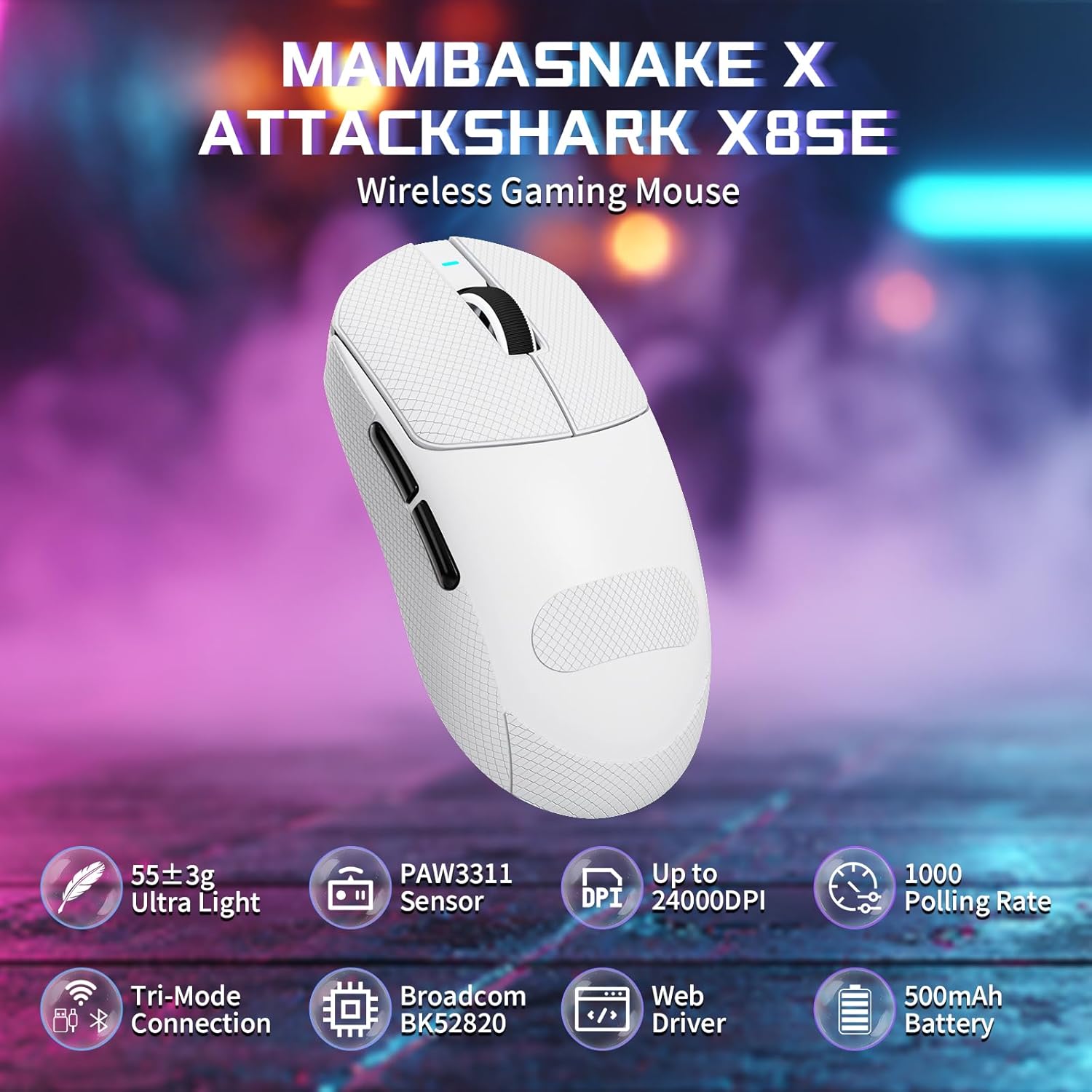
Figure 1: ATTACK SHARK X8SE Wireless Gaming Mouse highlighting ultra-light design, PAW3311 sensor, adjustable DPI, 1000Hz polling rate, tri-mode connection, Broadcom BK52820 chip, web driver, and 500mAh battery.
2. የጥቅል ይዘቶች
- ATTACK SHARK X8SE Wireless Gaming Mouse
- የዩኤስቢ-ሲ ባትሪ መሙያ / የውሂብ ገመድ
- 2.4ጂ ዩኤስቢ ተቀባይ
- Griptape (pre-applied or included separately)
- መመሪያ መመሪያ
3. ማዋቀር
3.1 የመጀመሪያ ደረጃ መሙላት
Before first use, connect the mouse to a USB-A port on your computer using the provided USB-C cable to ensure it is fully charged. The mouse can be used in wired mode while charging.
3.2 የግንኙነት ሁነታዎች
The X8SE mouse supports three connection modes: 2.4GHz Wireless, Bluetooth, and USB-C Wired. A switch on the bottom of the mouse allows you to select the desired mode.
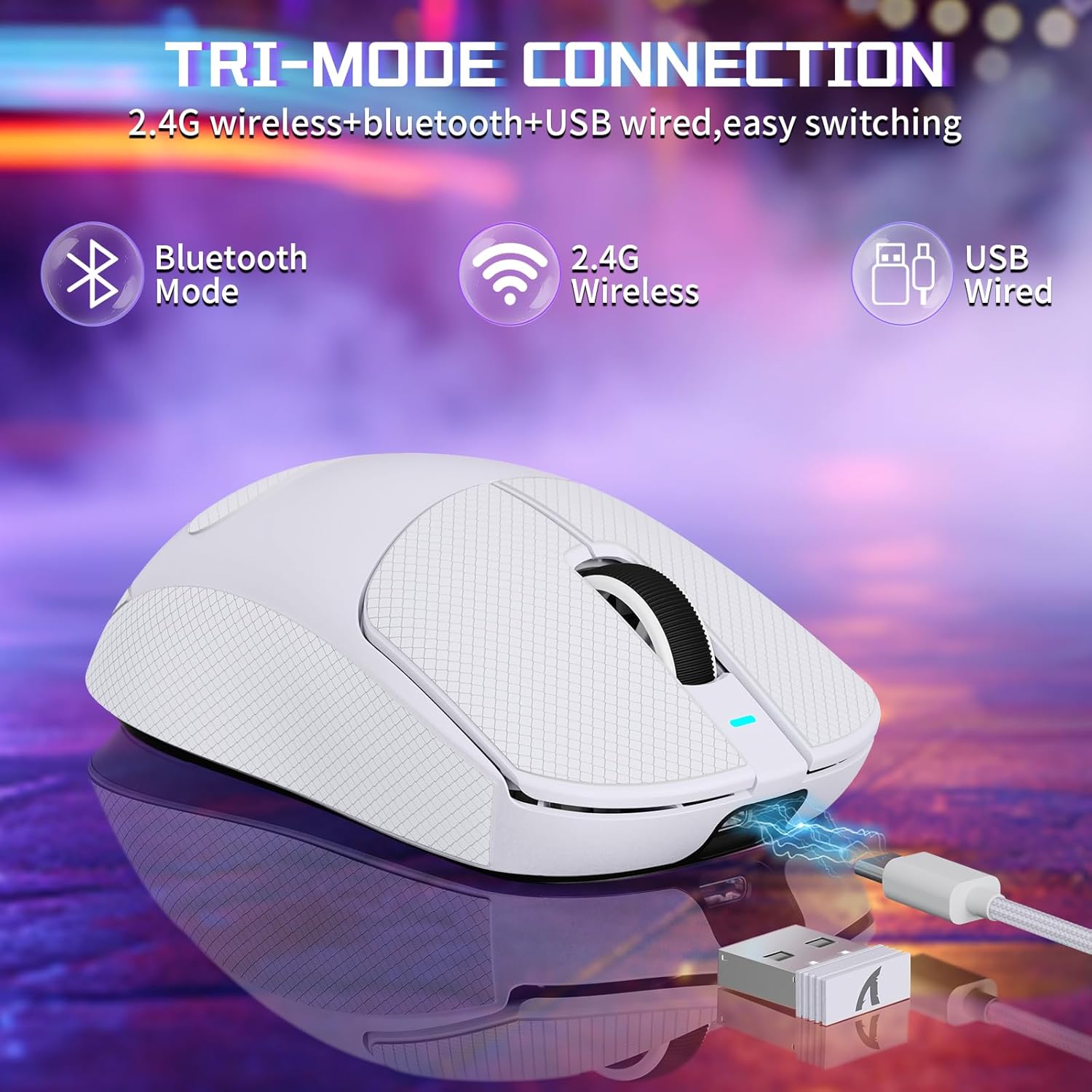
Figure 2: Tri-mode connection options including Bluetooth, 2.4G Wireless, and USB Wired.
3.2.1 2.4GHz ገመድ አልባ ሁነታ
- በመዳፊት ግርጌ ላይ ባለው ክፍል ውስጥ የተቀመጠውን 2.4ጂ የዩኤስቢ መቀበያ ያግኙ።
- የዩኤስቢ መቀበያውን በኮምፒዩተርዎ ላይ ካለው የዩኤስቢ-ኤ ወደብ ይሰኩት።
- በመዳፊት ግርጌ ላይ ያለውን የሞድ መራጭ ወደ '2.4ጂ' ቦታ ይቀይሩት።
- መዳፊቱ በራስ-ሰር ከኮምፒዩተርዎ ጋር መገናኘት አለበት።
3.2.2 የብሉቱዝ ሁነታ
- Switch the mode selector on the bottom of the mouse to the 'BT' position.
- በኮምፒተርዎ ወይም በመሳሪያዎ ላይ ወደ ብሉቱዝ ቅንብሮች ይሂዱ እና ብሉቱዝን ያንቁ።
- ፈልግ new devices and select 'ATTACK SHARK X8SE' to pair.
3.2.3 የዩኤስቢ-ሲ ባለገመድ ሁነታ
- Connect one end of the provided USB-C cable to the mouse and the other end to a USB-A port on your computer.
- አይጡ በራስ-ሰር ወደ ባለገመድ ሁነታ ይቀየራል እና ኃይል መሙላት ይጀምራል።
3.3 የአሽከርካሪዎች መጫኛ
The ATTACK SHARK X8SE utilizes an intelligent cloud-based driver for customization. This driver typically auto-detects your system. For advanced settings and customization, visit the official ATTACK SHARK website to download the latest software if not automatically prompted.
4. የአሠራር መመሪያዎች
4.1 የአዝራር ተግባራት
The X8SE mouse features 5 programmable buttons and a DPI switch.
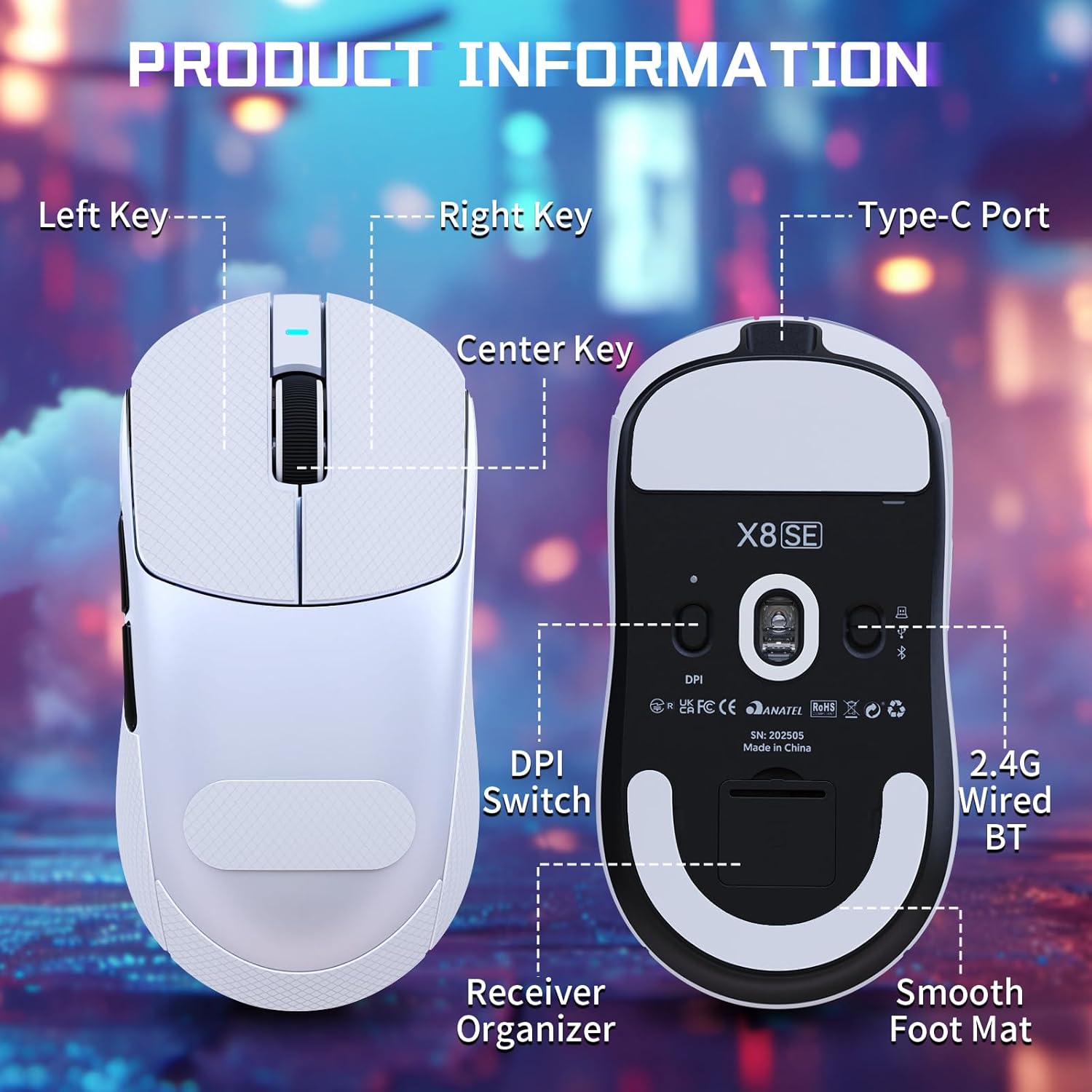
Figure 3: Product information diagram showing Left Key, Right Key, Center Key (scroll wheel), Type-C Port, Front Side Key, Back Side Key, DPI Switch, Receiver Organizer, and Smooth Foot Mat.
- የግራ ቁልፍ ዋና ጠቅታ ተግባር።
- የቀኝ ቁልፍ ሁለተኛ ጠቅታ ተግባር.
- Center Key (Scroll Wheel): ወደ ላይ/ወደታች ያሸብልሉ፣ መሃል ጠቅ ያድርጉ።
- የፊት ጎን ቁልፍ: Default function (programmable).
- Back Side Key: Default function (programmable).
- DPI Switch (bottom): በዲፒአይ ቅንብሮች ውስጥ ይሽከረከራል።
4.2 የዲፒአይ ማስተካከያ
The mouse is equipped with a PixArt PAW3311 optical sensor, offering up to 25,000 DPI. You can adjust the DPI sensitivity using the dedicated DPI switch on the bottom of the mouse. There are 6 adjustable DPI levels:
- 800 ዲፒአይ
- 1600 ዲፒአይ
- 2400 ዲፒአይ
- 3200 ዲፒአይ
- 8000 ዲፒአይ
- 25000 ዲፒአይ

Figure 4: Visual representation of adjustable DPI levels (800-25000) and polling rates (125Hz-1000Hz) with corresponding indicator lights.
4.3 የሕዝብ አስተያየት መስጫ መጠን ማስተካከያ
The 2.4G wireless mode supports a 1000Hz polling rate for esports-level responsiveness. Polling rates can be adjusted via the cloud driver software to 125Hz, 250Hz, 500Hz, or 1000Hz.
4.4 ማበጀት
Utilize the intelligent cloud driver software to fully customize your mouse settings. This includes:
- Remapping button functions.
- Adjusting DPI levels and sensitivity.
- Setting polling rates.
- Recording and assigning macros.

Figure 5: The cloud driver interface for customizing mouse settings, including button assignments, DPI, and polling rate.
4.5 የባትሪ ህይወት
The built-in 500mAh battery provides up to 65 hours of continuous use. Battery status can typically be monitored via the driver software or system indicators.

Figure 6: The 500mAh large capacity battery ensures extended usage.
4.6 Ergonomic ንድፍ
Weighing approximately 55g, the X8SE features an optimized symmetrical shape suitable for medium to large hands, promoting comfort and control during long sessions.

Figure 7: Dimensions of the X8SE mouse (125mm length, 63mm width, 39.7mm height) and its ergonomic design for larger hands and symmetrical waist-tapered shape.
5. ጥገና
5.1 ጽዳት
አይጥዎን ለማጽዳት, ለስላሳ እና ደረቅ ጨርቅ ይጠቀሙ. ለግትር ቆሻሻ, ትንሽ መamp cloth with mild soap can be used, ensuring no liquid enters the mouse. Avoid harsh chemicals or abrasive materials.
5.2 የባትሪ እንክብካቤ
To prolong battery life, avoid fully discharging the mouse frequently. Charge the mouse when the battery indicator is low. Store the mouse in a cool, dry place when not in use for extended periods.
5.3 Griptape Application
If your mouse came with separate griptape, ensure the mouse surface is clean and dry before applying. Carefully peel the backing from the griptape and align it with the designated areas on the mouse for improved grip. Press firmly to secure.
6. መላ መፈለግ
6.1 አይጥ ምላሽ አይሰጥም
- ግንኙነትን ያረጋግጡ፡ Ensure the mouse is in the correct mode (2.4G, BT, or Wired) and properly connected. For 2.4G, ensure the receiver is securely plugged in. For Bluetooth, verify pairing in your device's settings.
- የባትሪ ደረጃ፡ Charge the mouse using the USB-C cable.
- እንደገና ጀምር፥ Turn the mouse off and then on again using the switch on the bottom.
- የአሽከርካሪ ሶፍትዌር፡ If using the cloud driver, ensure it is running correctly. Sometimes restarting the driver software or running it as an administrator can resolve issues.
- የዩኤስቢ ወደብ፡ በኮምፒተርዎ ላይ የተለየ የዩኤስቢ ወደብ ይሞክሩ።
6.2 DPI or Polling Rate Not Changing
- ዲፒአይ መቀየሪያ፡- Ensure you are pressing the DPI switch on the bottom of the mouse firmly to cycle through settings.
- የሶፍትዌር ቅንጅቶች Verify DPI and polling rate settings within the cloud driver software. Apply any changes made in the software.
6.3 የብሉቱዝ ማጣመር ችግሮች
- የመዳፊት ሁነታ፡ Confirm the mouse is set to 'BT' mode.
- የመሣሪያ ብሉቱዝ፡ Ensure Bluetooth is enabled and discoverable on your computer or device.
- መሣሪያን እርሳ If previously paired, try 'forgetting' the mouse in your device's Bluetooth settings and re-pairing.
7. ዝርዝሮች
| ባህሪ | ዝርዝር መግለጫ |
|---|---|
| ሞዴል | X8SE |
| ግንኙነት | 2.4GHz ገመድ አልባ፣ ብሉቱዝ፣ ዩኤስቢ-ሲ ገመድ ያለው |
| ዳሳሽ | PixArt PAW3311 Optical |
| ዲፒአይ | እስከ 25,000 ዲፒአይ የሚስተካከል |
| አይፒኤስ | 400 አይፒኤስ |
| ማፋጠን | 40ጂ |
| የድምጽ መስጫ ደረጃ | 125Hz፣ 250Hz፣ 500Hz፣ 1000Hz |
| መቀየሪያዎች | Huano Micro Switches (80 Million Clicks) |
| ኢንኮደር | TTC Encoder |
| ባትሪ | 500mAh (እስከ 65 ሰአታት አጠቃቀም) |
| ክብደት | Approx. 55g (±3g) |
| መጠኖች | 125ሚሜ x 63ሚሜ x 39.7ሚሜ (በግምት) |
| ልዩ ባህሪያት | ኤርጎኖሚክ ዲዛይን፣ ቀላል ክብደት ያለው፣ ፕሮግራም ሊደረግባቸው የሚችሉ አዝራሮች፣ እንደገና ሊሞሉ የሚችሉ |
8. የምርት ቪዲዮ
ቪዲዮ፡ ይፋዊ የምርት ቪዲዮ ማሳያasing the ATTACK SHARK X8 SE 55g Superlight Wireless Gaming Mouse, demonstrating its design and features.
9. ዋስትና እና ድጋፍ
For warranty information and technical support, please refer to the documentation included with your product or visit the official ATTACK SHARK webጣቢያ. ለዋስትና ጥያቄዎች የግዢ ማረጋገጫዎን ያስቀምጡ።