1. መግቢያ
The THINKCAR THINKSCAN 672 is an advanced automotive diagnostic scan tool designed for comprehensive vehicle analysis and maintenance. It features a robust Android 10 operating system, a 7-inch touchscreen display, and powerful diagnostic capabilities. This device is equipped with a TES102 Endoscope Camera, allowing for visual inspection of hard-to-reach areas within the vehicle. The THINKSCAN 672 supports full system diagnostics, bidirectional control, and over 28 special service functions, making it an essential tool for automotive professionals and enthusiasts.

2. ማዋቀር
2.1 Unboxing እና ክፍሎች
ጥቅሉን ሲከፍቱ፣ ሁሉም አካላት መኖራቸውን ያረጋግጡ፡-
- THINKSCAN 672 Diagnostic Scan Tool
- TES102 Endoscope Camera
- OBD2 መመርመሪያ ገመድ
- የዩኤስቢ ዓይነት-ሲ ባትሪ መሙያ ገመድ
- የኃይል አስማሚ
- የተጠቃሚ መመሪያ (ይህ ሰነድ)
- የማከማቻ መያዣ
2.2 ከተሽከርካሪው ጋር መገናኘት
- የተሽከርካሪውን OBD2 ወደብ ያግኙ፣ በተለምዶ በዳሽቦርዱ ስር የሚገኘው በሾፌሩ ጎን ነው።
- Connect the OBD2 diagnostic cable to the THINKSCAN 672 device.
- Plug the other end of the OBD2 diagnostic cable into the vehicle's OBD2 port.
2.3 ማብራት እና የመጀመሪያ ማዋቀር
- Once connected to the vehicle, the THINKSCAN 672 will automatically power on, drawing power from the vehicle's OBD2 port. The internal battery will also charge during this time.
- Follow the on-screen prompts to select your preferred language, time zone, and other initial settings.
- Connect the device to a Wi-Fi network to ensure access to updates and online services.
3. የአሠራር መመሪያዎች
3.1 AutoSearch (VIN Scan)
The AutoSearch function automatically identifies the vehicle's Vehicle Identification Number (VIN), brand, model, and year, providing quick access to the vehicle's diagnostic system.
- From the main menu, tap on the 'AutoSearch' icon.
- The device will perform a VIN scan. Please wait for the process to complete.
- Once identified, you will be presented with options for Health Report, System Selection, or Vehicle Information.

3.2 የጤና ሪፖርት
The Health Report performs a full system scan to detect and display all Diagnostic Trouble Codes (DTCs) present in the vehicle's modules.
- After AutoSearch, select 'Health Report'.
- The device will scan all available systems and list any detected DTCs.
- ትችላለህ view details of each DTC, clear all DTCs (only after repairs are made), or generate a report.
3.3 የስርዓት ምርጫ
For targeted diagnostics, you can manually select specific vehicle systems (e.g., Powertrain, Chassis, Body) to scan.
- From the main menu or after AutoSearch, select 'System Selection'.
- Choose the desired system (e.g., 'Powertrain', 'Chassis', 'Body').
- Within the selected system, you can perform actions such as 'Read Fault Code', 'Clear Fault Memory', 'Read Freeze Frame', 'Read Data Stream', or 'Actuation Test'.
3.4 የቀጥታ የውሂብ ዥረት
Monitor real-time data parameters from various sensors and modules in numerical or graphical format.
- Navigate to a specific system (e.g., Engine Control Module) and select 'Read Data Stream'.
- Select the data parameters you wish to monitor. You can select up to 4 parameters to display simultaneously.
- View the data in numerical ('Value') or graphical ('Graph') format. The graphical display allows for easy visualization of parameter changes over time.
- You can record the data, generate a report, or save a sample for later analysis.
3.5 Actuation Test (Bidirectional Control)
Perform active tests on various vehicle components to verify their functionality.
- Navigate to a specific system and select 'Actuation Test'.
- Choose the component you wish to test (e.g., fuel injectors, cooling fan, ABS pump).
- የክፍሉን ምላሽ ለማግበር እና ለመመልከት በማያ ገጹ ላይ ያሉትን መመሪያዎች ይከተሉ።

4. Maintenance Functions (28+ Resets)
The THINKSCAN 672 offers over 28 special service functions for various maintenance tasks. These functions allow for resetting, relearning, or calibrating specific vehicle systems.

4.1 Common Reset Functions
- ዘይት ዳግም ማስጀመር; የዘይት ለውጥ ከተደረገ በኋላ የሞተር ዘይት ህይወት ስርዓትን እንደገና ያስጀምራል።
- EPB (Brake-pad Reset): Helps replace and reset the brake pad.
- SAS (Steering Angle Reset): የመሪ አንግል ዳሳሹን ዳግም ያስጀምራል።
- BMS (Battery Matching): ከተተካ በኋላ አዲሱን ባትሪ ይመዘግባል።
- DPF (DPF Regeneration): Performs regeneration for diesel particulate filters.
- የኤቢኤስ ደም መፍሰስ፡ Bleeds the ABS system to remove air.
- IMMO (Anti-theft/Key Matching): Disables lost keys and adds new keys (for cars with easy IMMO system).
- ኢንጀክተር ኮድ ማድረግ፡ አዲስ የኢንጀስተር ቁጥሮችን ወደ ኢኩዩ ይቀይራል።
- TPMS ዳግም ማስጀመር፡- Resets tire pressure monitoring system sensors.
- ETS (Electronics Throttle Adaption): የስሮትል አንቀሳቃሾችን ወደ ነባሪ ሁኔታ ያስጀምራል።
- EGR Adaption: Adapts the Exhaust Gas Recirculation valve.
- Air/Fuel Ratio Reset: Sets or learns air/fuel ratio parameters.
For detailed instructions on each function, refer to the on-device tutorials or the user manual.
5. መላ መፈለግ
5.1 አጠቃላይ የመላ ፍለጋ ምክሮች
- መሳሪያ አይበራም Ensure the OBD2 cable is securely connected to both the device and the vehicle's OBD2 port. Check the vehicle's battery voltage.
- የግንኙነት ስህተት፡- Verify the vehicle's ignition is on. Ensure the OBD2 cable is not damaged. Try connecting to a different vehicle to rule out device issues.
- የዲቲሲዎች (DTCs) አይጸዱም፦ Ensure the underlying issue causing the DTCs has been resolved before attempting to clear them. Clearing codes without addressing the root cause will result in their immediate return.
- Slow Operation: Ensure the device software is up to date. A stable Wi-Fi connection is recommended for updates.
5.2 Remote Assistance & Feedback
If you encounter persistent issues or require technical support, the THINKSCAN 672 offers built-in support features:
- ግብረ መልስ፡- Submit diagnostic reports and feedback directly to the THINKCAR team for analysis and problem resolution.
- የርቀት እርዳታ፡ Get technical support through remote diagnostic tools.
6. ዝርዝሮች
| ባህሪ | መግለጫ |
|---|---|
| ማሳያ | 7-inch Touchscreen, 1024*600 Resolution |
| ስርዓተ ክወና | አንድሮይድ 10 |
| ፕሮሰሰር | 2GB Cortex Quad-Core |
| ማህደረ ትውስታ | 2 ጊባ ራም ፣ 32 ጊባ ሮም |
| ግንኙነት | 2.4G/5G Wi-Fi, Type-C, Bluetooth |
| ባትሪ | 3150mAh (Rechargeable via OBD2) |
| የተሽከርካሪ ተኳኋኝነት | 140+ car brands since 1996 (American, European, Asian). FCA AutoAuth compatible (2018+ Chrysler, Jeep, Dodge, Fiat). |
| ዝማኔዎች | የዕድሜ ልክ ነፃ ዝመናዎች |
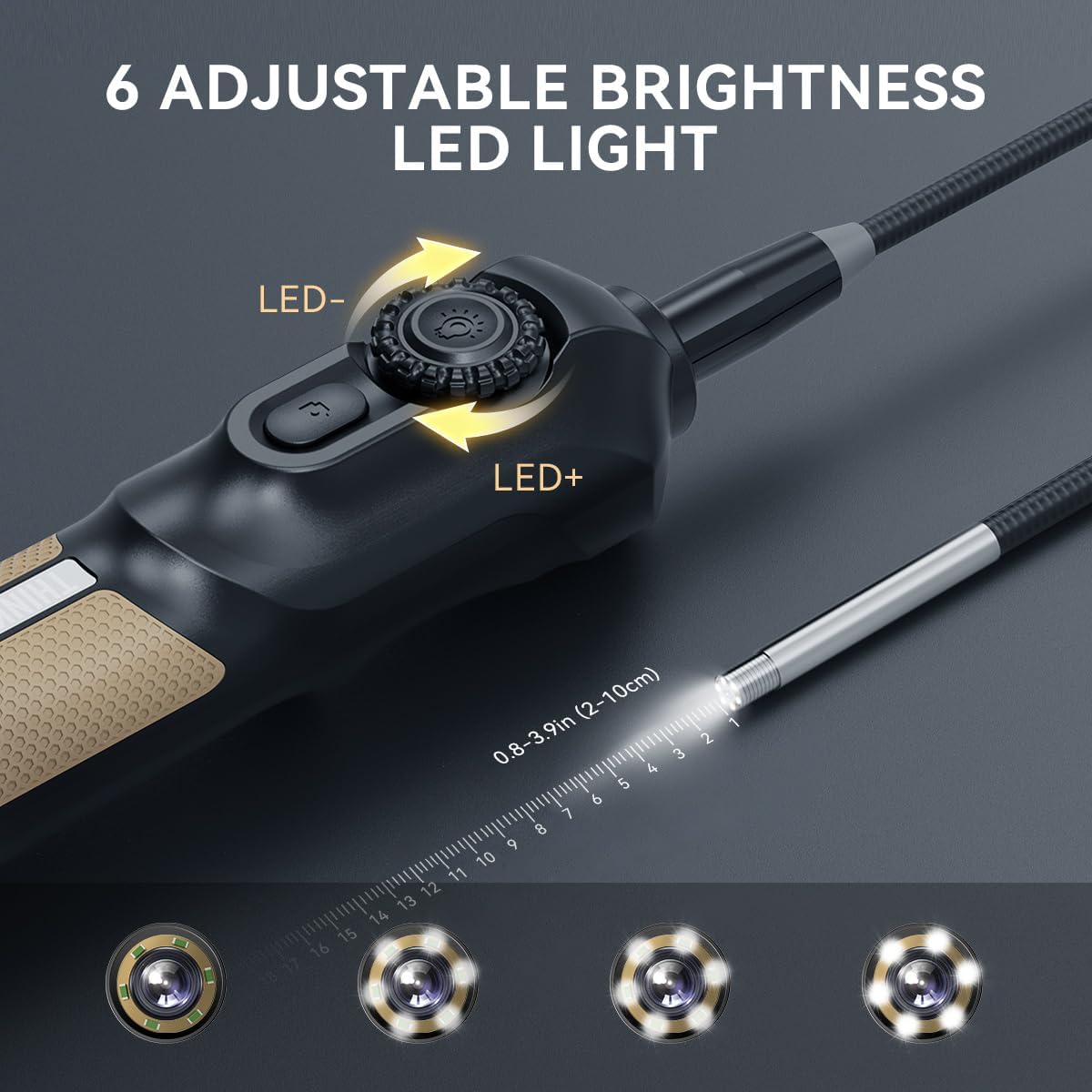
| Endoscope Camera (TES102) | 6 adjustable brightness LED lights, easy entry into hard-to-reach areas, one-click photo/video capture. |

7. ዋስትና እና ድጋፍ
7.1 የዋስትና መረጃ
Specific warranty details are not provided in the product data. Please refer to the product packaging or contact THINKCAR customer support for comprehensive warranty information.
7.2 የደንበኛ ድጋፍ
For any technical support, questions, or assistance, please contact THINKCAR customer service via:
- የመስመር ላይ አገልግሎት፡ Available through the device's interface.
- ኢሜይል፡- support@mythinkcar.com
- መነሻ ገጽ፡ Refer to the device's homepage for additional resources.


