መግቢያ
The Insignia USB Dual Hard Drive Docking Station provides a convenient and efficient solution for connecting 2.5-inch and 3.5-inch SATA hard drives (HDDs) and solid-state drives (SSDs) to your computer. This docking station supports high-speed data transfer and offers plug-and-play functionality, making it ideal for data recovery, backups, and expanding storage capacity.
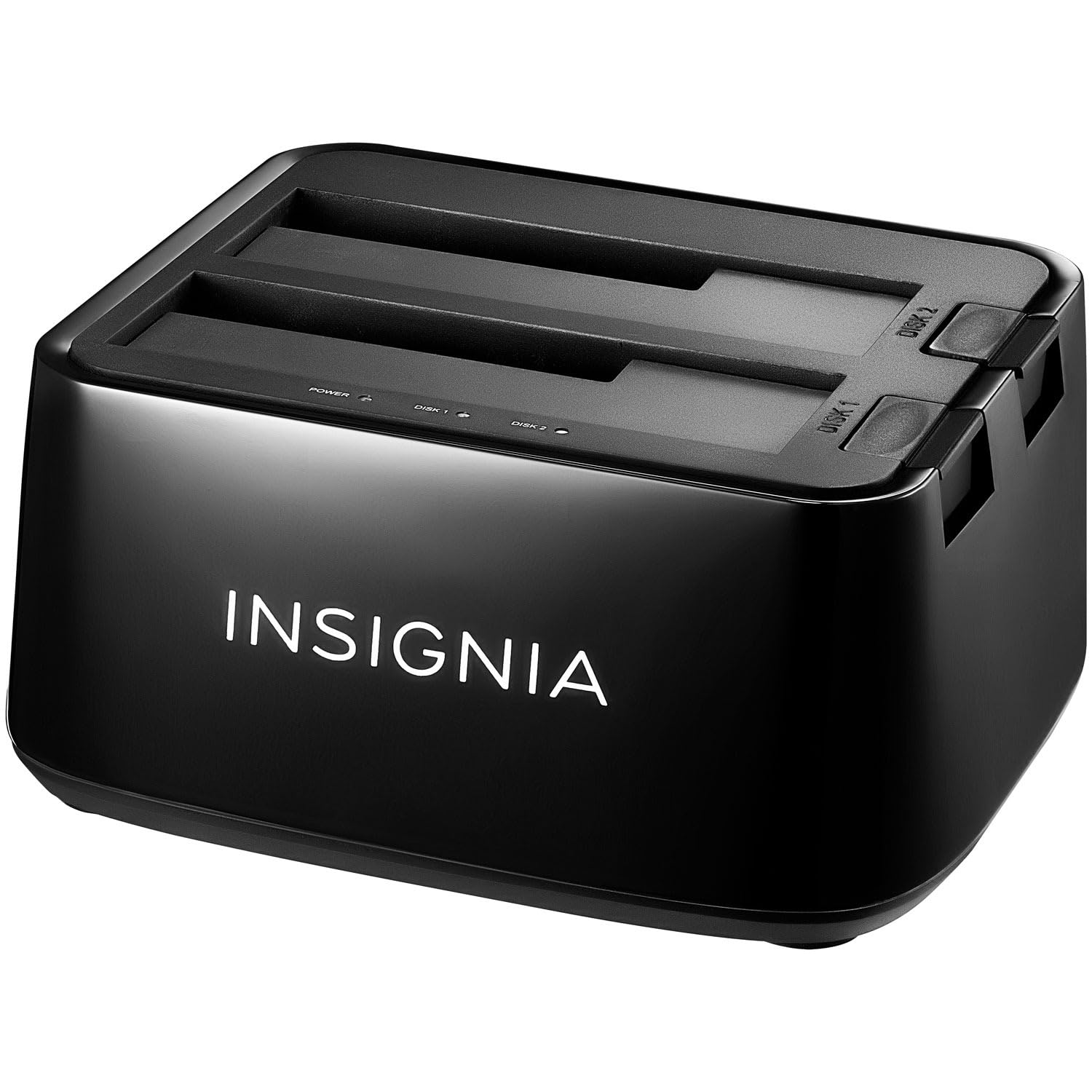
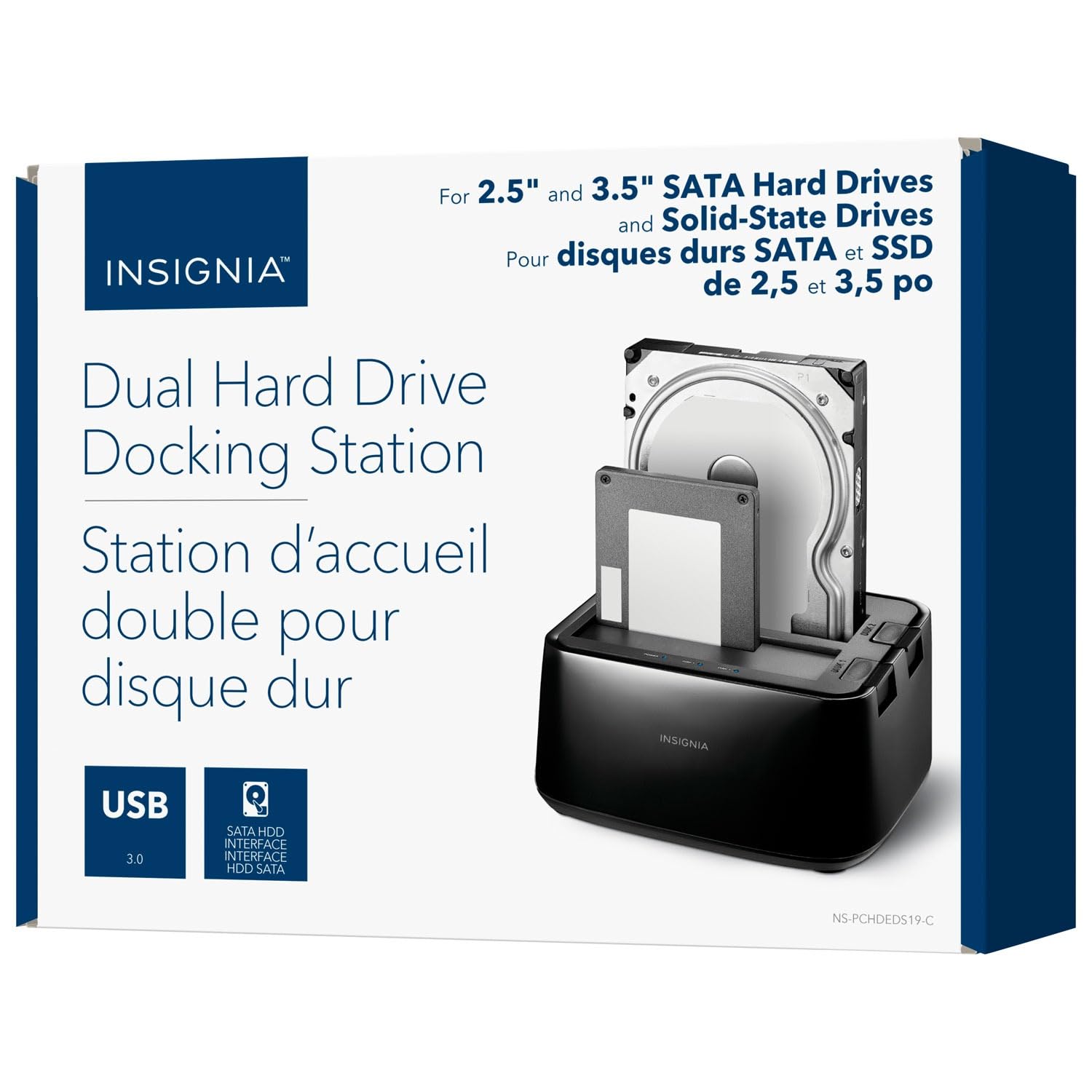
ምስል፡ ፊት ለፊት view of the Insignia USB Dual Hard Drive Docking Station packaging, showing the product and its compatibility with 2.5" and 3.5" SATA drives.
የጥቅል ይዘቶች
እባክዎ ሁሉም እቃዎች በጥቅልዎ ውስጥ መኖራቸውን ያረጋግጡ፡-
- Insignia USB Dual Hard Drive Docking Station
- የኃይል አስማሚ (12V/3A)
- የዩኤስቢ 3.0 ገመድ
- ፈጣን ማዋቀር መመሪያ
የምርት ባህሪያት
- ሁለገብ ተኳኋኝነት Supports both 2.5-inch and 3.5-inch SATA I/II/III HDDs and SSDs. Compatible with Windows 11, 10, macOS, ChromeOS, iPadOS, and Android systems.
- የከፍተኛ ፍጥነት አፈጻጸም፡ Utilizes USB 3.0 technology for data transfer speeds up to 5 Gbps.
- ባለሁለት ቤይ ዲዛይን Allows simultaneous access to two hard drives.
- Plug & Play Simplicity: ለመጫን ምንም ሾፌሮች አያስፈልጉም።
- ትኩስ-ተለዋዋጭ; Drives can be inserted and removed without restarting the computer.
- የ LED አመልካቾች Provides visual feedback for power and data activity.
- ዘላቂ ግንባታ; Crafted with robust plastic materials for long-lasting use.
ማዋቀር
Follow these steps to set up your Insignia USB Dual Hard Drive Docking Station:
- የግንኙነት ኃይል; Plug the included 12V/3A power adapter into the DC IN port on the back of the docking station, then plug the adapter into a power outlet.
- Insert Hard Drives: Gently slide your 2.5-inch or 3.5-inch SATA HDD/SSD into an available drive bay (Disk 1 or Disk 2) until it is firmly seated. Ensure the SATA connector on the drive aligns with the connector in the bay.
- ከኮምፒዩተር ጋር ይገናኙ; Connect one end of the USB 3.0 cable to the USB 3.0 IN port on the docking station and the other end to an available USB port on your computer.
- አብራ፡ Flip the power switch on the back of the docking station to the ON position. The power LED indicator will illuminate.
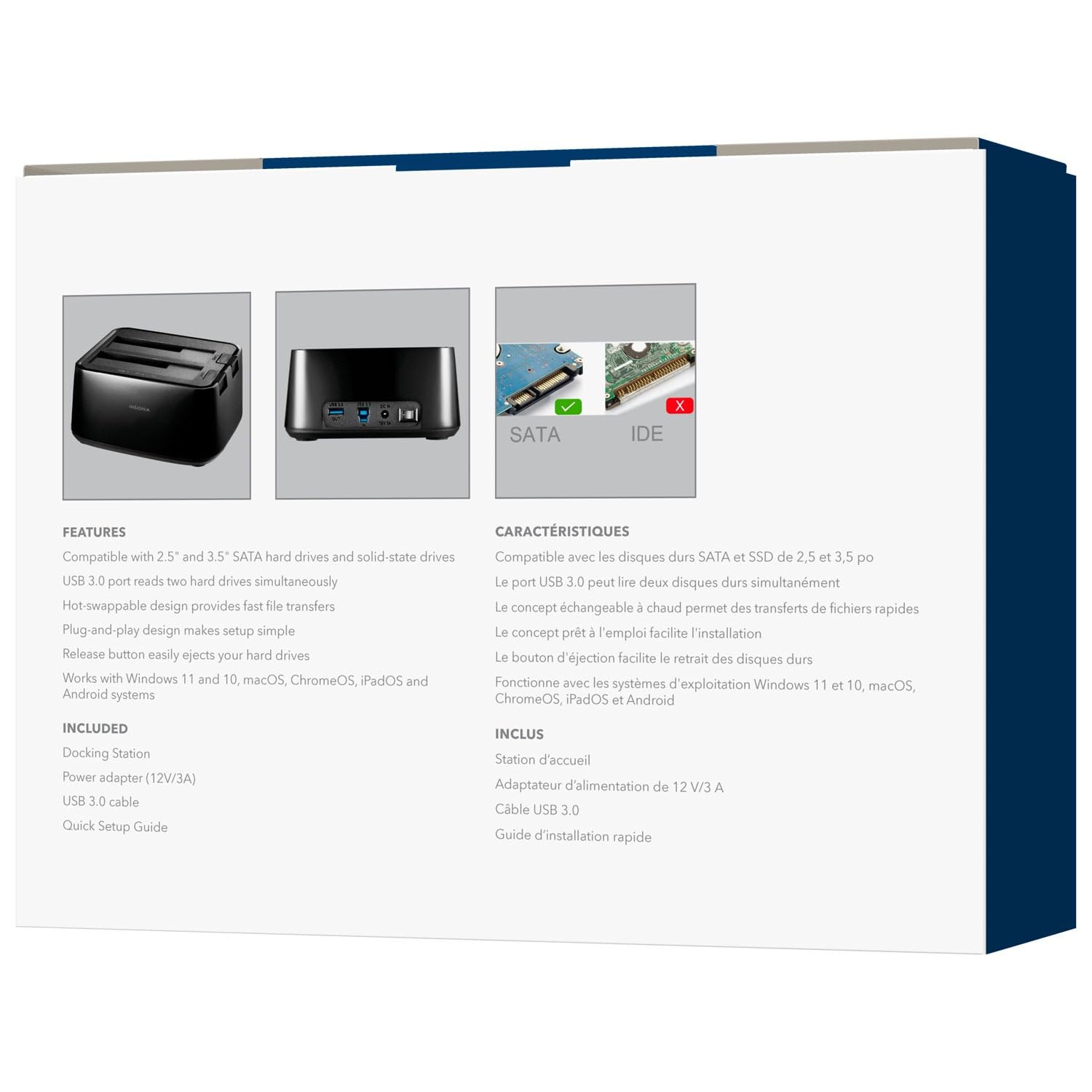
ምስል: የኋላ view of the docking station, highlighting the USB 3.0 IN/OUT ports, DC IN power port, and power switch.
ምስል፡- ከላይ-ፊት view of the docking station with a 2.5-inch SSD and a 3.5-inch HDD correctly inserted into their respective bays.
የአሠራር መመሪያዎች
Inserting and Removing Drives
- ለማስገባት፡- Align the SATA connector of your HDD/SSD with the slot in the docking station bay and gently push down until the drive is securely seated.
- ለማስወገድ፡- Ensure no data transfer is active. Safely eject the drive from your operating system (e.g., "Safely Remove Hardware" on Windows, "Eject" on macOS). Then, press the release button next to the drive bay and carefully pull the drive upwards to remove it.
የውሂብ ማስተላለፍ
Once connected and powered on, your operating system should automatically detect the inserted drives. They will appear as removable storage devices. You can then drag and drop files, copy, paste, or use backup software as you would with any other external storage device.
የ LED አመልካቾች
- የኃይል LED; Illuminates when the docking station is powered on.
- Activity LEDs (Disk 1, Disk 2): Blink when data is being accessed or transferred to/from the corresponding drive.
ጥገና
- ማጽዳት፡ Use a soft, dry cloth to clean the exterior of the docking station. Do not use liquid cleaners or solvents.
- ማከማቻ፡ ጥቅም ላይ በማይውሉበት ጊዜ፣ የመትከያ ጣቢያውን ከፀሐይ ብርሃን እና ከፍተኛ የሙቀት መጠን ራቅ ባለ ቀዝቃዛና ደረቅ ቦታ ያስቀምጡ።
- አያያዝ፡ መሳሪያውን ለጠንካራ ተጽእኖዎች ከመጣል ወይም ከማስገዛት ይቆጠቡ, ይህ ውስጣዊ አካላትን ሊጎዳ ይችላል.
መላ መፈለግ
Drive አልተገኘም።
- የኃይል አስማሚው ደህንነቱ በተጠበቀ ሁኔታ መገናኘቱን እና የመትከያ ጣቢያው መብራቱን ያረጋግጡ።
- Verify that the USB cable is firmly connected to both the docking station and your computer.
- የዩኤስቢ ገመዱን በኮምፒዩተርዎ ላይ ካለው የተለየ የዩኤስቢ ወደብ ለማገናኘት ይሞክሩ።
- Ensure the hard drive is properly seated in the docking station bay.
- ድራይቭ የሚታወቅ ነገር ግን ቅርጸት ያልተሰራበት ወይም ያልተመደበ መሆኑን ለማየት የዲስክ አስተዳደር (ዊንዶውስ) ወይም የዲስክ መገልገያ (ማክኦኤስ) ን ያረጋግጡ።
- Test with a different known-good hard drive to rule out a drive issue.
ቀርፋፋ የውሂብ ዝውውር ፍጥነት
- Ensure you are connected to a USB 3.0 port on your computer for optimal speeds. Connecting to a USB 2.0 port will result in slower transfer rates.
- Verify the hard drive itself is capable of high speeds. Older HDDs may have slower performance.
- ብዙ ትናንሽ ማስተላለፍን ያስወግዱ fileበተመሳሳይ ጊዜ፣ ይህ አጠቃላይ የዝውውር ፍጥነትን ሊቀንስ ስለሚችል።
Docking Station Not Powering On
- Check that the power adapter is correctly plugged into both the docking station and a working power outlet.
- Ensure the power switch on the back of the docking station is in the ON position.
- የተለየ የኃይል መውጫ ይሞክሩ።
ዝርዝሮች
| የምርት ስም | ኢንስጋኒያ |
| ሞዴል | B0FWFVTZ9W |
| የሃርድዌር በይነገጽ | ዩኤስቢ 3.0 |
| የሚጣጣሙ የDrive አይነቶች | 2.5" and 3.5" SATA I/II/III HDD/SSD |
| የውሂብ ማስተላለፍ ፍጥነት | እስከ 5 Gbps (USB 3.0) |
| የሃርድዌር መድረክ | ሁለንተናዊ |
| ቁሳቁስ | ፕላስቲክ |
| የኃይል አስማሚ | 12V/3A |
ዋስትና እና ድጋፍ
For warranty information and technical support, please refer to the documentation included with your product or visit the official INSIGNIA website. You may also contact INSIGNIA customer service directly for assistance.