1. መግቢያ
The TOPDON TC002C Duo Thermal Camera transforms your smartphone into a professional thermal imaging device. This compact tool features an advanced dual-camera system, combining a thermal sensor with a visual camera to deliver precise heat detection and visualization. Designed for portability and ease of use, it is ideal for various applications, including automotive diagnostics, mechanical inspections, and general temperature analysis. This manual provides essential information for the proper setup, operation, and maintenance of your TC002C Duo.
2. ምርት አብቅቷልview
The TC002C Duo is engineered for professional-grade thermal imaging, offering a range of features to enhance diagnostic capabilities.
- ባለሁለት ካሜራ ስርዓት; Integrates a thermal sensor and a visual camera for comprehensive heat detection and image overlay.
- የስማርትፎን ተኳሃኝነት; Connects directly to iOS, Android, and Windows devices for real-time viewመግቢያ እና ትንተና።
- ተንቀሳቃሽ ንድፍ; Compact and lightweight, requiring no external charging, making it suitable for field use.
- የሙቀት ምስል ልዕለ ጥራት (TISR)፦ Enhances the thermal resolution from 256x192 to 512x384 pixels for improved clarity.
- ሰፊ የሙቀት መጠን; Capable of detecting temperatures from -4°F to 1022°F (-20°C to 550°C).
- ከፍተኛ የፍሬም ተመን፡ 25Hz frame rate ensures smooth thermal video capture.

ምስል 2.1፡ Illustration of Thermal Image Super Resolution (TISR) technology, demonstrating the enhanced clarity from 256x192 pixels to 512x384 pixels. The image shows two thermal views of an electrical panel, with the right side displaying significantly more detail due to TISR.

ምስል 2.2፡ ዝርዝር የንድፍ ማሳያasing the internal components of TOPDON's thermal imaging technology, including lenses and sensor. Key specifications are listed below the diagram: Frame Rate 25Hz, Super IR resolution 512x384, NETD <40mK, Field of View 50° x 37.2°, and Temperature Range -4°F to 1022°F.
3. ማዋቀር እና መጫን
To begin using your TC002C Duo, follow these steps for connecting to your smartphone or PC and installing the necessary software.
- የሞባይል መተግበሪያ አውርድ: For smartphone use, download the "TopInfrared" app from your device's app store (available for iOS and Android).
- Download PC Software: For PC use, download the "TopView" software from the official TOPDON webጣቢያ.
- መሣሪያውን ያገናኙ; Plug the TC002C Duo directly into your smartphone's USB-C port (or appropriate adapter for iOS devices). For PC, connect via a compatible USB port. The device is powered directly by your connected device and requires no separate charging.
- ማመልከቻውን ያስጀምሩ፡- Open the "TopInfrared" app on your smartphone or "TopView" software on your PC. The thermal camera feed should appear automatically.
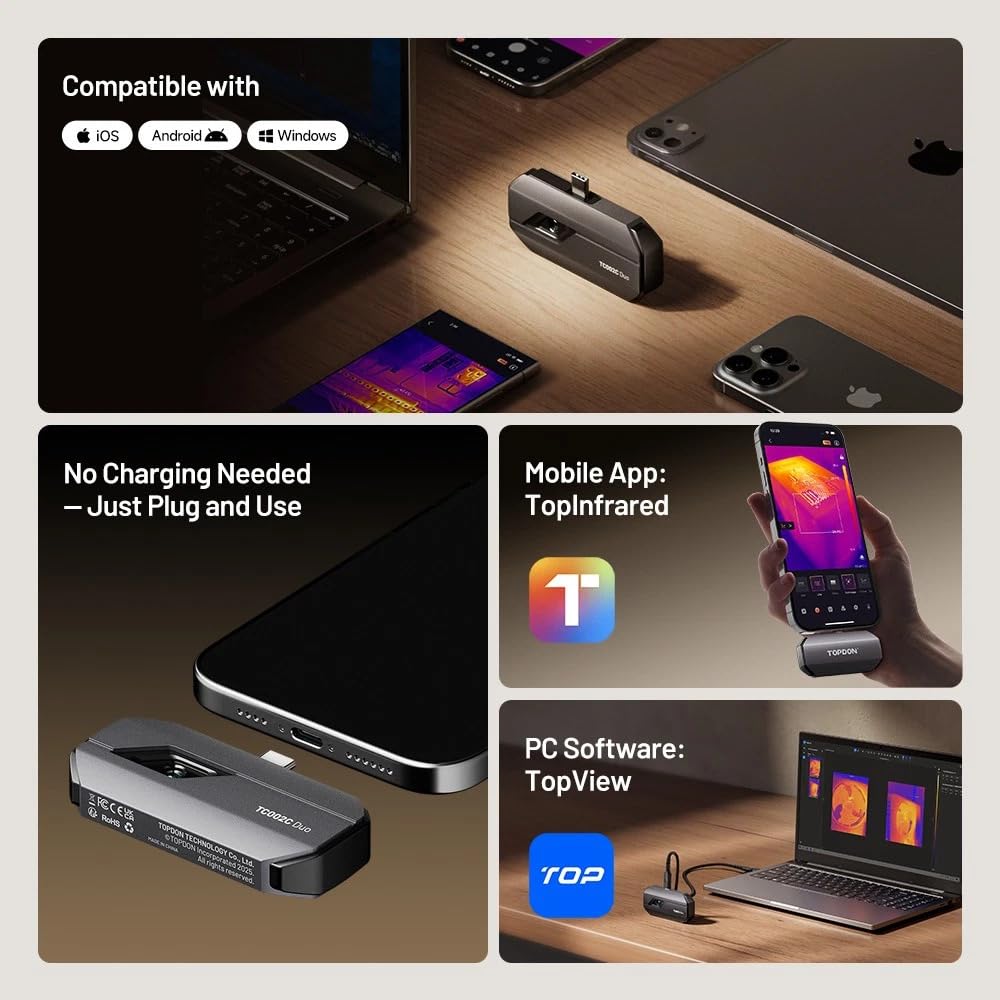
ምስል 3.1፡ The TOPDON TC002C Duo thermal camera shown connected to a smartphone and a laptop, illustrating its compatibility with iOS, Android, and Windows operating systems. The image also highlights the dedicated mobile application "TopInfrared" and PC software "TopView" for device operation.
4. የአሠራር መመሪያዎች
Once connected and the software is launched, you can begin using your TC002C Duo for thermal imaging. The application provides various tools for analysis and data capture.
4.1 መሠረታዊ አሠራር
- ቀጥታ View: The main screen displays the live thermal feed. You can switch between thermal view, visual view, or an overlay of both (if supported by the app).
- የሙቀት መለኪያ; The app typically displays real-time temperature readings for specific points or areas. Use the on-screen tools to select measurement points or regions of interest.
- ምስል እና ቪዲዮ ቀረጻ፡ Use the dedicated buttons within the app to capture thermal images or record thermal videos. These files are saved to your device's gallery or designated folder.
- የፓሌት ምርጫ፡ Choose from various color palettes (e.g., Iron, Rainbow, White Hot, Black Hot) to visualize temperature differences more effectively based on your application.
4.2 የላቁ ባህሪያት
- High/Low Temperature Alerts: Configure the app to trigger alerts when temperatures exceed or fall below user-defined thresholds. This is useful for identifying anomalies quickly.
- Detailed Reports: The software can generate detailed temperature analysis reports, which can be valuable for professional documentation and diagnostics.
- የልቀት ማስተካከያ; For accurate temperature readings, adjust the emissivity setting in the app to match the material being inspected. Refer to emissivity tables for common materials.

ምስል 4.1፡ An individual conducting an electrical inspection using the TOPDON TC002C Duo thermal camera connected to a smartphone. The image highlights the app's capabilities for setting high/low temperature alerts and generating detailed temperature analysis reports, crucial for identifying safety risks.

ምስል 4.2፡ A scene depicting a family in a living room, accompanied by thermal images illustrating how the TC002C Duo can be used to detect hidden heat signatures, such as those from pests like rats or termites within walls, contributing to home safety and protection.
5. ጥገና
Proper maintenance ensures the longevity and optimal performance of your TC002C Duo thermal camera.
- ሌንስን ማጽዳት; Gently clean the thermal and visual camera lenses with a soft, lint-free cloth. For stubborn smudges, use a lens cleaning solution specifically designed for optics. Avoid abrasive materials or harsh chemicals.
- ማከማቻ፡ Store the device in a cool, dry place, away from direct sunlight and extreme temperatures. Use the provided protective case (if applicable) to prevent physical damage.
- የሶፍትዌር ማሻሻያ Regularly check for and install software and firmware updates for the "TopInfrared" app and "TopView" PC software to ensure compatibility and access to new features or performance improvements.
- አካላዊ ተጽዕኖን ያስወግዱ፡- Protect the device from drops and impacts, as this can damage the sensitive internal components.
6. መላ መፈለግ
If you encounter issues with your TC002C Duo, refer to the following common troubleshooting steps.
- መሳሪያ አልተገኘም
- Ensure the device is securely plugged into your smartphone or PC.
- Verify that the "TopInfrared" app or "TopView" software is open and running.
- Check if your smartphone or PC's USB port is functioning correctly.
- Restart your smartphone/PC and the application.
- የሙቀት ምስል ማሳያ የለም፡
- Confirm the app has necessary permissions (e.g., camera access) on your smartphone.
- Ensure the device's lenses are not obstructed or dirty.
- መሣሪያውን እንደገና ለማገናኘት ይሞክሩ።
- ትክክለኛ ያልሆነ የሙቀት ንባቦች;
- Check and adjust the emissivity setting in the app to match the material being measured.
- Ensure the target object is within the device's specified temperature range.
- Verify that there are no obstructions or reflective surfaces interfering with the measurement.
- App/Software Crashing:
- Ensure your app/software is updated to the latest version.
- Clear the app's cache (on smartphones) or reinstall the software (on PC).
- Ensure your smartphone/PC meets the minimum system requirements for the application.
If these steps do not resolve the issue, please contact TOPDON customer support for further assistance.
7. ዝርዝሮች
| ባህሪ | ዝርዝር መግለጫ |
|---|---|
| የሞዴል ቁጥር | TC002C Duo |
| የሙቀት ጥራት | 256x192 (512x384 with TISR) |
| የሙቀት ክልል | -4°F እስከ 1022°F (-20°ሴ እስከ 550°ሴ) |
| የፍሬም መጠን | 25Hz |
| መስክ የ View | 50° x 37.2° |
| NETD | <40mK |
| ተኳኋኝነት | አይኦኤስ፣ አንድሮይድ፣ ዊንዶውስ |
| የኃይል አቅርቦት | Powered by connected device |
| ዩፒሲ | 810139301998 |
8. ዋስትና እና ድጋፍ
TOPDON products are designed for reliability and performance. For specific warranty details, please refer to the warranty card included with your product or visit the official TOPDON webጣቢያ.
For technical support, product inquiries, or service requests, please contact TOPDON customer support through their official website or the contact information provided in your product packaging. When contacting support, please have your product model number (TC002C Duo) and purchase information ready.


