መግቢያ
Thank you for choosing the ProtoArc EM02 Trackball Mouse. This manual provides detailed instructions for setting up, operating, and maintaining your device to ensure a comfortable and efficient user experience. The EM02 features an ergonomic design with adjustable tilt, multi-device connectivity, silent click buttons, and a high-precision trackball for smooth cursor control.
የጥቅል ይዘቶች
- ProtoArc EM02 የትራክቦል መዳፊት
- የዩኤስቢ ተቀባይ
- የዩኤስቢ-ሲ ኃይል መሙያ ገመድ
- የተጠቃሚ መመሪያ
የምርት ባህሪያት
- Ergonomic Design with Adjustable Angle: The mouse features a 45° tilt and a 15° adjustable base, allowing for a natural wrist posture to reduce strain during prolonged use. This design is ideal for medium to large hands (palm length 17.5cm to 20cm).
- የብዝሃ-መሣሪያ ግንኙነት; Connects to up to three devices simultaneously via Bluetooth (2 devices) and 2.4GHz USB receiver (1 device). Easily switch between connected devices with a single button.
- የጸጥታ ጠቅታ አዝራሮች፡ Left and right buttons utilize silent switches, reducing click noise by over 90%. Ideal for quiet environments like libraries, cafes, or offices. (Note: Scroll wheel and forward/back buttons are not silent.)
- Long-lasting Battery & USB-C Charging: Equipped with a 500mAh battery, providing approximately 150 hours of continuous use on a single full charge. Features a battery level indicator for convenience.
- Smooth Trackball & 5-Stage DPI: A 34mm diameter trackball combined with a high-precision sensor ensures smooth and accurate cursor tracking. DPI can be adjusted through 5 levels (200, 400, 800, 1200, 1600) to suit various tasks.
- Convenient Side Buttons: Includes 'Forward' and 'Back' buttons for enhanced browsing and work efficiency. (Note: These buttons may not function on macOS.)
ማዋቀር
1. ማብራት / ማጥፋት
Locate the power switch on the underside of the mouse. Slide it to the 'ON' position to power on the device, and to 'OFF' to power it off.
2. Connecting via 2.4GHz USB Receiver
- የዩኤስቢ መቀበያውን ከመዳፊት ግርጌ ላይ ካለው የማከማቻ ቦታ ያስወግዱ።
- የዩኤስቢ መቀበያውን በኮምፒዩተርዎ ላይ ወዳለው የዩኤስቢ ወደብ ያስገቡ።
- The mouse will automatically connect. The 2.4GHz indicator light will illuminate.
3. በብሉቱዝ በኩል መገናኘት
- Press the mode switch button on the top of the mouse to select either Bluetooth 1 (BT1) or Bluetooth 2 (BT2). The corresponding indicator light will flash.
- በመሳሪያዎ (ፒሲ፣ ታብሌት፣ ስማርትፎን) ላይ ወደ ብሉቱዝ ቅንብሮች ይሂዱ እና አዲስ መሳሪያዎችን ይፈልጉ።
- Select "ProtoArc EM02" from the list of available devices to pair.
- አንዴ ከተጣመረ በኋላ የብሉቱዝ አመልካች መብራቱ ያቆማል እና ጠንካራ ሆኖ ይቆያል።
የአሠራር መመሪያዎች
1. መሰረታዊ የአዝራር ተግባራት
- የግራ አዝራር፡ ዋና ጠቅታ ተግባር።
- የቀኝ አዝራር፡- ሁለተኛ ደረጃ ጠቅታ ተግባር (የአውድ ምናሌ)።
- የማሽከርከር ጎማ፡ ገጾችን ወደ ላይ/ወደ ታች ይሸብልሉ።
- ወደፊት/ኋላ አዝራሮች፡- Navigate forward/backward in web browsers or applications. (Functionality may vary by OS/application, not supported on macOS).
2. የዲፒአይ ማስተካከያ
Press the DPI change button located near the scroll wheel to cycle through the 5 DPI settings (200, 400, 800, 1200, 1600). Select the sensitivity that best suits your task.

Image: DPI adjustment button and available sensitivity settings.
3. በመሳሪያዎች መካከል መቀያየር
To switch between connected devices (Bluetooth 1, Bluetooth 2, or 2.4GHz), simply press the mode switch button on the top of the mouse. The corresponding indicator light will show which device is currently active.
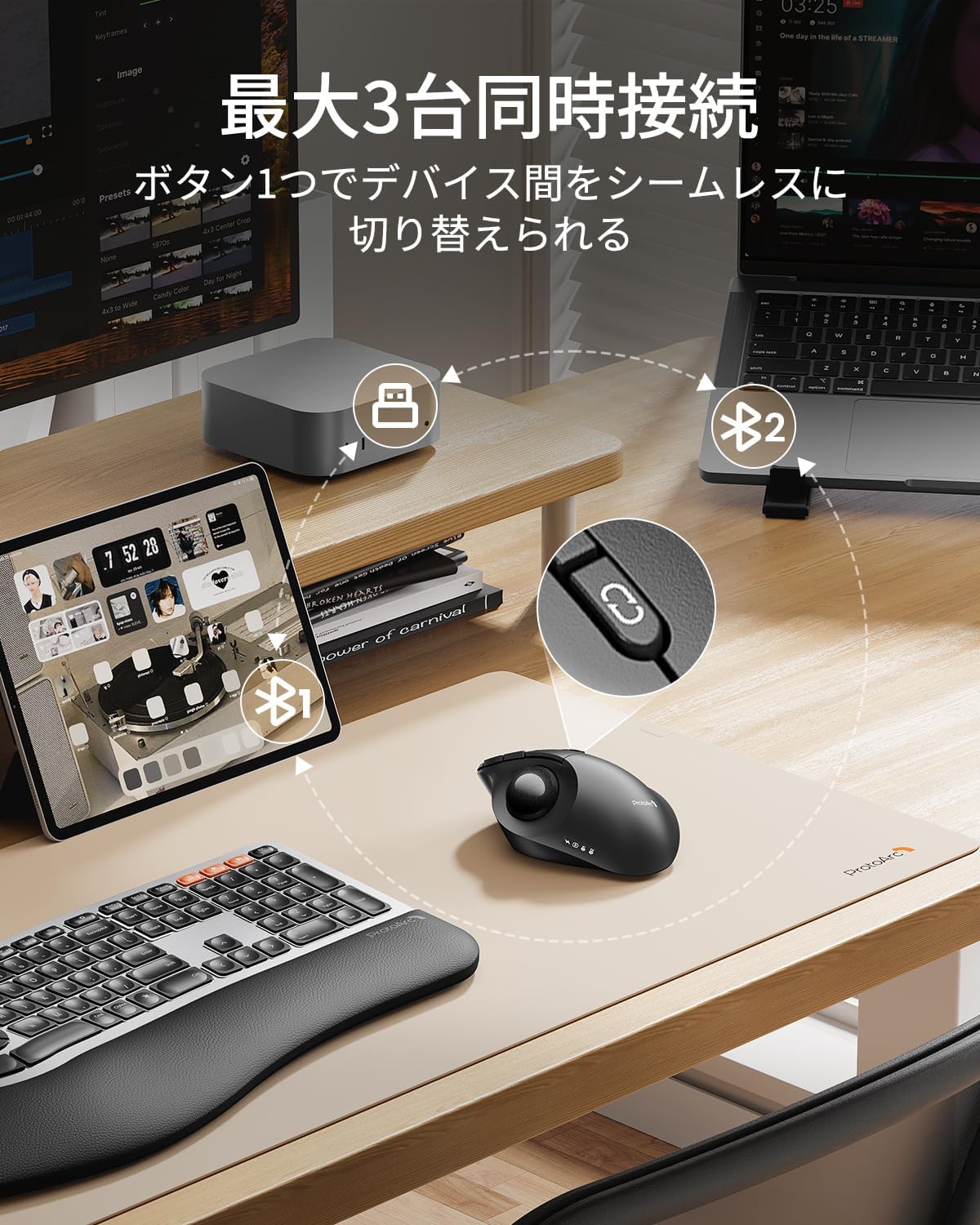
Image: Multi-device connectivity and mode switching.
ባትሪ መሙላት እና መሙላት
The ProtoArc EM02 Trackball Mouse features a built-in rechargeable 500mAh battery. Use the provided USB-C cable to charge the mouse. A full charge takes approximately 2-3 hours and provides up to 150 hours of continuous use or 90 days of standby time. The battery indicator lights will show the charging status and remaining battery level.

Image: USB-C charging port and battery life details.
ጥገና
Regular cleaning of the trackball is essential for optimal performance, as dust and debris can accumulate. We recommend cleaning 1-2 times per week.
የትራክ ኳስ ማጽዳት
- የመዳፊት የኃይል ማብሪያ / ማጥፊያውን ያጥፉ።
- Gently push the trackball out from the small hole on the underside of the mouse using a thin stick (e.g., a cotton swab). Alternatively, you can hold the mouse upside down and use your index finger and thumb to grip both sides of the ball, then pull it out from the groove.
- Use a cleaning cloth to wipe away any dust or grime from the trackball and the inside of the trackball housing, especially around the contact points and sensor. For stubborn dirt, lightly dampen a cotton swab with a small amount of water. Ensure no water enters the mouse interior.
- Wipe the removed trackball clean with a cleaning cloth.
- Place the cleaned trackball back into its original position.

Image: Trackball removal and cleaning process.
Important Notes for Cleaning:
- Do not use alcohol or shampoo, as these can damage the ball's surface. If using a neutral detergent, rinse thoroughly with water and dry completely in a well-ventilated area.
- If the trackball movement is still poor after cleaning, apply a small amount of hand cream to a soft cloth and polish the entire ball evenly to distribute oil. Then, wipe off any excess oil.
- Handle with care to avoid damaging the optical sensor during cleaning.
መላ መፈለግ
1. Mouse not responding:
- አይጤው መብራቱን ያረጋግጡ።
- የባትሪውን ደረጃ ይፈትሹ እና አስፈላጊ ከሆነ ኃይል ይሙሉ።
- For 2.4GHz connection, ensure the USB receiver is securely plugged into the computer.
- ለብሉቱዝ ግንኙነት፣ ብሉቱዝ በመሳሪያዎ ላይ መንቃቱን እና መዳፊቱ መጣመሩን ያረጋግጡ። አስፈላጊ ከሆነ እንደገና ለማጣመር ይሞክሩ።
- Switch to a different connection mode (2.4GHz or Bluetooth) to see if the issue persists.
2. Cursor movement is erratic or sluggish:
- Clean the trackball and the sensor area as described in the Maintenance section.
- Adjust the DPI setting to a higher or lower value to see if it improves responsiveness.
- Ensure there are no obstructions between the mouse and the receiver (for 2.4GHz) or the Bluetooth device.
3. Forward/Back buttons not working on macOS:
- The forward/back buttons are not supported on macOS. This is a system limitation.
ዝርዝሮች
| ባህሪ | ዝርዝር መግለጫ |
|---|---|
| የሞዴል ቁጥር | EM02 |
| ግንኙነት | Bluetooth, 2.4GHz USB |
| የዲፒአይ ደረጃዎች | 200፣ 400፣ 800፣ 1200፣ 1600 |
| የባትሪ አቅም | 500mAh |
| ቀጣይነት ያለው አጠቃቀም ጊዜ | በግምት. 150 ሰዓታት |
| የኃይል መሙያ ጊዜ | በግምት. 2-3 ሰዓታት |
| የመጠባበቂያ ጊዜ | ግምታዊ 90 ቀናት |
| የኃይል መሙያ ወደብ | ዩኤስቢ-ሲ |
| የሚስተካከለው ማዕዘን | 0° እና 15° |
| ተስማሚ ስርዓተ ክወና | Windows XP/7/8/10+, macOS X 10.12+, Android 5.0+, iOS 13+ |
| መጠኖች | 14.4 x 12.2 x 8.9 ሴ.ሜ |
| ክብደት | 230 ግ |
ዋስትና እና ድጋፍ
The ProtoArc EM02 Trackball Mouse comes with an 18-month manufacturer's warranty from the date of purchase. In the unlikely event of a defective or damaged product, please contact customer support for an exchange or refund.
ማስታወሻ፡- The included instruction manual in the package is multilingual, with the Japanese explanation located at the end of the booklet. Please refer to that section when using the product.
የደንበኛ ድጋፍ፡
- ኢሜይል፡- support-jp@protoarc.com
- አማዞን Go to the seller page, click 'Ask a question', and send your inquiry.
ተጨማሪ መረጃ
ProtoArc is dedicated to creating healthy and comfortable workspaces, aiming to provide professional service and support whether you are in the office, at home, or on a business trip. Our product design emphasizes comfort, health, convenience, and efficiency.