መግቢያ
The LOFREE Pudding Dual Mode Wireless Mouse (Model OE929) is designed for versatile use across various operating systems and devices. It offers both Bluetooth and 2.4G wireless connectivity, adjustable DPI settings, and a comfortable, ergonomic design. This manual provides instructions for setup, operation, maintenance, and troubleshooting to ensure optimal performance of your device.
የጥቅል ይዘቶች
- LOFREE Pudding Dual Mode Wireless Mouse
- የዩኤስቢ ተቀባይ (2.4ጂ)
- Charging Cable (USB-C to USB-A, typically)
- የተጠቃሚ መመሪያ
ምርት አልቋልview
The LOFREE Pudding mouse features a unique transparent texture and an ergonomic design for comfortable use. It includes an adjustable ambient light feature and a scroll wheel with integrated button functionality.

ምስል፡ The LOFREE Pudding mouse showcasing its high transparency texture and sleek design.

ምስል፡ A hand holding the LOFREE Pudding mouse, illustrating its comfortable, skin-like touch and ergonomic grip.
ማዋቀር
1. አይጤውን በመሙላት ላይ
Before first use, ensure the mouse is fully charged. Connect the provided charging cable to the mouse's charging port and to a USB power source. The ambient light may indicate charging status (e.g., breathing light while charging, solid when full).

ምስል፡ The LOFREE Pudding mouse, highlighting its approximately 100 hours of battery life on a single charge.
2. Dual-Mode Connection
The mouse supports two wireless connection methods: 2.4G via USB receiver and Bluetooth.
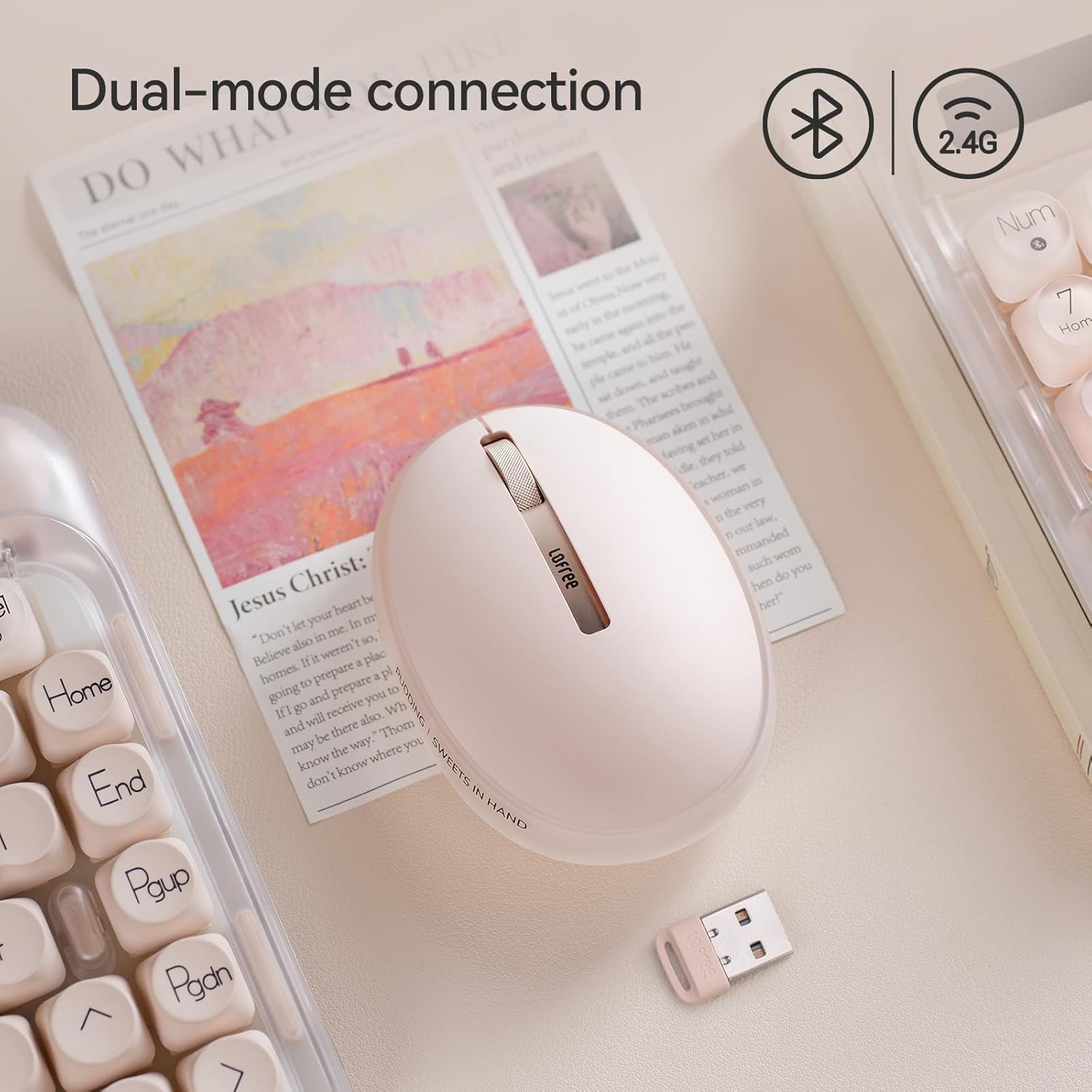
ምስል፡ The LOFREE Pudding mouse demonstrating its dual-mode connection capability, supporting both Bluetooth and 2.4G wireless technologies.
2.1. 2.4G ገመድ አልባ ግንኙነት
- Locate the USB receiver, typically stored in a compartment on the mouse or in the packaging.
- የዩኤስቢ መቀበያውን በኮምፒውተርዎ ላይ ወዳለው የዩኤስቢ ወደብ ይሰኩት።
- Turn on the mouse. The computer should automatically detect and install the necessary drivers.
- ማስታወሻ፡- For systems below Windows 7, the 2.4G connection is recommended as Bluetooth mode may not be supported.
2.2. የብሉቱዝ ግንኙነት
- የመሳሪያዎ ብሉቱዝ መንቃቱን ያረጋግጡ።
- Switch the mouse to Bluetooth mode (refer to the mouse's bottom switch or button for mode selection).
- On your device, search for Bluetooth devices. The mouse should appear as "LOFREE Pudding Mouse" or similar.
- ለማጣመር መዳፊትን ይምረጡ። የማጣመር ሂደቱን ለማጠናቀቅ በማያ ገጹ ላይ ያሉትን ማናቸውንም ጥያቄዎች ይከተሉ።
3. ተኳሃኝነት
The LOFREE Pudding mouse is compatible with a wide range of operating systems and devices, including:
- Windows (Windows 7 and above for Bluetooth)
- ማክሮስ
- iOS
- አንድሮይድ
- PC, Mac, Laptop, and other compatible devices.
የአሠራር መመሪያዎች
1. የዲፒአይ ደረጃዎችን ማስተካከል
The mouse features 5 adjustable DPI levels to suit different tasks and preferences. You can cycle through these settings by pressing the DPI button, usually located near the scroll wheel or on the bottom of the mouse.
- Available DPI settings: 600, 800, 1200, 1600, 3600.
- Press the DPI button to switch between levels. The mouse cursor speed will change accordingly.

ምስል፡ A hand demonstrating the adjustment of DPI levels on the LOFREE Pudding mouse, with available settings of 600, 800, 1200, 1600, and 3600.
2. Ambient Light Modes
The mouse is equipped with an adjustable ambient light feature, offering two modes:
- Constant Always On: The light remains steadily illuminated.
- የአተነፋፈስ ሁኔታ; The light gently pulses on and off.
To switch between these modes, refer to the dedicated light control button or combination of buttons on the mouse. In dormant state, the ambient light will turn off and can be reactivated by clicking any button on the mouse.

ምስል፡ The LOFREE Pudding mouse displaying its adjustable ambient light feature, with options for "Always On" or "Breathing" modes.
3. የኃይል አስተዳደር
The mouse is designed to conserve battery life. It will enter a dormant state after a period of inactivity, turning off the ambient light. To wake the mouse, simply click any button.
ጥገና
1. ማጽዳት
- የመዳፊትን ገጽ ለማጽዳት ለስላሳ፣ ደረቅ፣ ከንጣፍ ነፃ የሆነ ጨርቅ ይጠቀሙ።
- ለግትር ቆሻሻ፣ በትንሹ መampጨርቁን በውሃ ወይም መለስተኛ ፣ የማይበላሽ ማጽጃ።
- ኃይለኛ ኬሚካሎችን፣ ፈሳሾችን ወይም ሻካራ ቁሶችን ከመጠቀም ይቆጠቡ፣ ምክንያቱም እነዚህ የመዳፊትን መጨረሻ ሊጎዱ ይችላሉ።
- ምንም ፈሳሽ ወደ መዳፊት ውስጣዊ ክፍሎች ውስጥ እንደማይገባ ያረጋግጡ.
2. የባትሪ እንክብካቤ
- የባትሪውን ጤና ለመጠበቅ መዳፊቱን በየጊዜው ቻርጅ ያድርጉ።
- በተደጋጋሚ ባትሪውን ሙሉ በሙሉ ከመሙላት ይቆጠቡ።
- If storing the mouse for an extended period, charge it to approximately 50% to prevent deep discharge.
መላ መፈለግ
Mouse Not Responding / Disconnecting
- ባትሪ ይፈትሹ፡ Ensure the mouse is charged. Connect it to a power source.
- 2.4ጂ ግንኙነት፡-
- የዩኤስቢ መቀበያ ደህንነቱ በተጠበቀ ሁኔታ በሚሰራ የዩኤስቢ ወደብ ላይ መሰካቱን ያረጋግጡ።
- የተለየ የዩኤስቢ ወደብ ይሞክሩ።
- Ensure the mouse is switched to 2.4G mode.
- የብሉቱዝ ግንኙነት
- በመሳሪያዎ ላይ ብሉቱዝ መንቃቱን ያረጋግጡ።
- Ensure the mouse is switched to Bluetooth mode.
- Unpair and re-pair the mouse from your device's Bluetooth settings.
- Ensure your device's operating system supports Bluetooth for mice (e.g., Windows versions below 7 may have limited support).
- ጣልቃ ገብነት፡- Move the mouse closer to the receiver/device. Avoid using it near other wireless devices that might cause interference.
ዲፒአይ አይለወጥም
- ትክክለኛውን የዲፒአይ ማስተካከያ አዝራር መጫንዎን ያረጋግጡ።
- If the mouse is unresponsive, try restarting it (turn off and on).
Ambient Light Not Working
- Check if the mouse is in a dormant state; click a button to wake it.
- ባትሪው በበቂ ሁኔታ መሙላቱን ያረጋግጡ።
- Verify you are using the correct button or combination to cycle through light modes.
ዝርዝሮች
| ባህሪ | ዝርዝር |
|---|---|
| የሞዴል ቁጥር | OE929 |
| የግንኙነት ቴክኖሎጂ | Bluetooth, 2.4G Radio Frequency |
| የእንቅስቃሴ ማወቂያ ቴክኖሎጂ | ኦፕቲካል |
| የዲፒአይ ደረጃዎች | 600, 800, 1200, 1600, 3600 (Adjustable) |
| የባትሪ አቅም | 500mAh |
| የባትሪ ህይወት | በግምት 100 ሰዓታት |
| ልዩ ባህሪያት | LED Lights (Ambient), Lightweight, Rechargeable, Wireless |
| ተኳኋኝነት | Windows, macOS, iOS, Android (PC, Mac, Laptop) |
| የእቃው ክብደት | 8.9 አውንስ |
| የጥቅል ልኬቶች | 5.2 x 4.13 x 2.4 ኢንች |
ዋስትና እና ድጋፍ
LOFREE products are manufactured to high-quality standards. For warranty information, technical support, or service inquiries, please refer to the official LOFREE webበቀጥታ የደንበኛ ድጋፋቸውን ያግኙ ወይም ያግኙ። የግዢ ደረሰኝዎን ለዋስትና ጥያቄዎች ያስቀምጡ።
ለበለጠ መረጃ፣ ይጎብኙ LOFREE Store on Amazon.


